
Signal Group Admins: What They Can Do and How to Manage Them
Published: October 7, 2026 Updated: October 8, 2026
Every Signal group has at least one admin, and the admin role is what keeps a group from becoming a free-for-all. Admins decide who joins, who manages, and what regular members are allowed to do. This guide explains exactly:
- what admins can do
- how to promote and demote people
- which permissions you can hand out or lock down
- how to remove members
- the one move (leaving as the last admin) that you should never make without a handoff
from Signal's official site file hosted by Signal, not by us
What an admin actually is
A Signal group admin is a member with management powers. When you create a group, you start as its admin. The role is not a badge or a title. It is a set of abilities that regular members do not have. Anyone you promote becomes a full admin with the same powers as you; there are no half-admins or junior admins in Signal.
That flat structure matters. Promoting someone hands them real power: they can remove members, reset the group's invite link, and change its permissions. So the first rule of adminship is the simplest: only promote people you trust with the whole group. This is not like making someone a "moderator" with limited powers. In Signal, every admin is an equal.
There is no fixed cap on how many admins a group can have (Signal groups hold up to 1,000 members), but in practice keep the number small and deliberate. A 50-person group with two admins is healthy. The same group with twenty admins is a group with no real governance at all.
Everything admins can do
Here is the full admin toolkit, in plain language:
- Add members. Add contacts to the group directly (subject to the group's Permissions, which admins themselves control).
- Remove members. Remove any member from the group, at any time, without their consent.
- Promote and demote admins. Make any member an admin, and take admin status away from any admin, including other admins.
- Manage the Group Link. Turn the invite link on and off, show it as a QR code, turn Approve New Members on and off, approve or reject join requests, and reset the link. (See our group invite link guide for the full workflow.)
- Set member permissions. Decide whether regular members can add people, edit group info, and start group calls, or whether those stay admin-only. Details below.
- Change group settings. Edit the group's name, description, and photo, and manage settings like the disappearing-message timer for the group.
- Leave the group. Yes, admins can leave too. But the last-admin case is special, and we cover it below.
What admins cannot do is worth knowing too:
- they cannot read anyone's disappearing messages after they vanish
- they cannot see anyone's phone number beyond what the member's number privacy settings allow
- they cannot stop a member from leaving the group
How to make someone an admin
Open group settings to promote an admin
Open the group chat and tap the group's name at the top.
Open the member list
Look through the group's members to find the person you want to promote.
Promote them
Tap the member and choose the option to make them an admin. They become a full admin immediately: no waiting period, no confirmation from them.
Promote thoughtfully. Good candidates: co-organizers of the community, people who are online when you are not (so join requests and spam get handled around the clock), and people who have shown they handle conflict calmly. Bad candidates: the loudest person in the group, someone who just asked for the role, anyone you would not hand your phone to.
How to remove admin status
Taking admin powers away works the same way in reverse: open the group settings, find the admin in the member list, tap them, and remove their admin status. They stay in the group as a regular member. Losing the role does not remove the person.
When demotion makes sense:
- Someone went rogue. An admin removing members they disagree with or changing the group's direction single-handedly. Demote first, discuss after.
- A co-admin steps down. Life changes; someone hands the role back. Demote them so the admin list stays honest.
- You over-promoted. It happens. Fix it early, before it causes a problem.
Do it quietly when you can. A calm private message ("hey, trimming the admin list, thanks for helping") avoids drama that a public removal would start.
Member permissions: the three levers
Admins do not have to do everything themselves. The group's Permissions settings let them hand specific powers to all members, or keep them admin-only. There are three levers, and each one is a real governance choice:
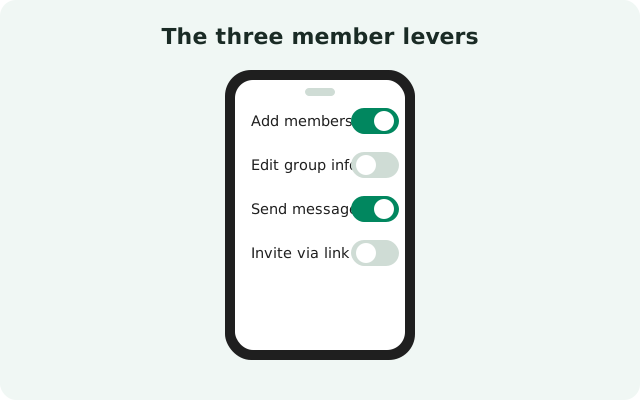
- Who can add members. Set to everyone, and any member can pull new people in: handy for a friends' group, dangerous for a curated community. Set to admins only, and every addition goes through a manager. For any group bigger than a dinner party, admins-only is the sane default.
- Who can edit group info. The group's name, photo, and description. Open it up and you get playful chaos (fun for friends, a mess for a brand). Lock it down and the group's identity stays stable.
- Who can start group calls. Group calls ring everyone, so this lever controls who can summon the whole group. In a work group, you may want anyone to be able to start a call. In a 400-person community, absolutely not.
Exact wording of these options can vary slightly between app versions, but the three areas (adding members, editing group info, starting calls) are the ones Signal lets admins gate. Set them once when the group is created, and revisit them when the group grows: a 12-person group and a 500-person group should not share the same settings.
How to remove a member
Open group settings to remove a member
Open the group chat and tap the group's name at the top.
Find the member
Scroll the member list to the person you want to remove.
Remove them
Tap the member and choose the option to remove them from the group.
Removal is immediate: the person leaves the group chat, stops receiving new messages, and cannot rejoin except through an invite link or a fresh manual add. A few honest notes:
- Removed members keep their history. Everything they received while in the group stays on their phone. Removal stops the future, not the past. For sensitive material, this is why disappearing messages exist.
- Removal does not reset the link. If the person you removed also has the group's invite link saved, they can simply rejoin. After removing a troublemaker, reset the Group Link as well. That is the step people forget. (Full steps in our group invite link guide.)
- Removal is visible. The group sees that someone was removed (or left). There is no silent ejection. If the situation is delicate, a private word before or after helps.
- You cannot remove yourself this way. To leave, use the leave-group option, covered next.
What happens when the last admin leaves
This is the section that saves groups. If you are the group's only admin, do not leave without promoting someone first. A group whose last admin leaves is a group nobody can manage: no one can add or remove members, no one can reset the invite link, no one can approve join requests, and no one can change the permissions. The members can keep chatting, but the group is effectively ungoverned. There is no clean way to fix it after the fact.
The safe handoff, every time:
Promote your successor
Make a trusted member an admin while you are still in the group.
Confirm they accept the role
Tell them directly. An admin who does not know they are an admin is barely better than none.
Leave
Now leave. The group has management continuity.
If you are stepping down but staying in the group, demote yourself after promoting the successor. And if you are the last admin of a group you want to keep alive, consider promoting two people before you go: redundancy is the whole point of this exercise.
Admin vs member: the full comparison
| Ability | Admin | Regular member |
|---|---|---|
| Send and read messages | Yes | Yes |
| Add members | Yes | Only if Permissions allow it |
| Remove members | Yes | No |
| Promote or demote admins | Yes | No |
| Turn the Group Link on/off or reset it | Yes | No (but anyone can share an active link) |
| Approve link join requests | Yes | No |
| Change Permissions settings | Yes | No |
| Edit group name, photo, description | Yes | Only if Permissions allow it |
| Start group calls | Yes | Only if Permissions allow it |
| Leave the group | Yes (hand off first if last admin) | Yes |
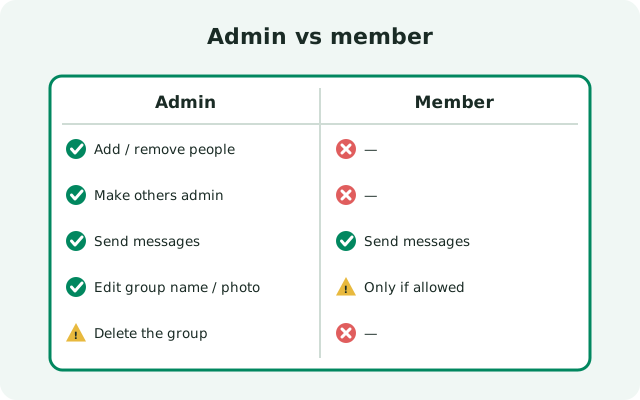
Notice the pattern: everything a member can do, an admin can do too, plus the management layer. The Permissions settings are what blur the line in the middle. Use them to give a mature group more freedom without giving away the keys.
Admin hygiene checklist
Run through this once a month for any group that matters. It takes five minutes:
- Count the admins. Two minimum. If you are the only one, fix that today.
- Review the member list. Scroll it. Anyone you do not recognize in a group that should be curated? Ask or remove.
- Check the link status. Is the Group Link still on from last month's recruitment drive? Turn it off, or reset it.
- Check approval. If the link is on and the group is public-ish, Approve New Members should be on.
- Revisit Permissions. The group grew from 20 to 200 people but "everyone can add members" is still set? Lock it down.
- Prune stale admins. Someone who helped long ago and has not posted since does not need the keys anymore.
- Keep a second admin awake. Make sure your co-admin actually opens the app. An admin account that never logs in cannot approve anyone.
Groups are the heart of Signal. Our groups guide covers creation and the 1,000-member ceiling, and our group polls guide shows how to run decisions without the admin having to count votes by hand. For the noisy ones, a well-timed mute from our custom notifications guide beats admin action every time.
FAQ
How do I make someone an admin of a Signal group?
Open the group chat, tap the group name at the top, find the person in the member list, tap them, and choose the option to make them an admin. They get the full admin powers immediately.
How do I remove an admin on Signal?
As an admin, open the group settings, tap the admin in the member list, and remove their admin status. They stay in the group as a regular member.
What can Signal group admins do?
Add and remove members, promote and demote admins, manage the group invite link and join-request approvals, set member permissions, and change group settings like the name, photo, and description.
Can regular members add people to a Signal group?
Only if the group's Permissions allow it. Admins can set adding members to everyone or admins only. The same kind of control exists for editing group info and starting group calls.
What happens if the last admin leaves a Signal group?
Nobody is left who can manage it: no adding or removing members, no invite-link control, no permission changes. Always promote a trusted member to admin before the last admin leaves.
How do I remove someone from a Signal group?
Open the group settings, tap the member in the member list, and remove them. Then reset the group's invite link so they can't rejoin with a saved link. Removed members keep messages they already received.
Keep reading
- the group invite link guide: links, QR codes, approval, and resetting
- the Signal groups guide: creation, the 1,000-member limit, and group types
- group polls: let members vote instead of arguing
- custom notifications: mute the noisy groups without admin drama