
Can You Keep Messages in Disappearing Chats? The Honest Answer
Published: October 7, 2026 · Updated: October 8, 2026
You set a disappearing timer, the conversation flows, and then one message turns out to be worth keeping. A flight confirmation, an address, a photo you actually want. Naturally you look for a “keep this one” button. Here is the honest answer up front: there isn't one, and there never will be. Disappearing messages exist precisely so that no copy can be pinned down after the fact. But that does not mean you are helpless. There are real, working ways to preserve what matters. All of them have to happen before the clock runs out. This guide covers what actually works, what definitely does not, and the one conversation you should have instead of reaching for a workaround.
from Signal's official site — file hosted by Signal, not by us
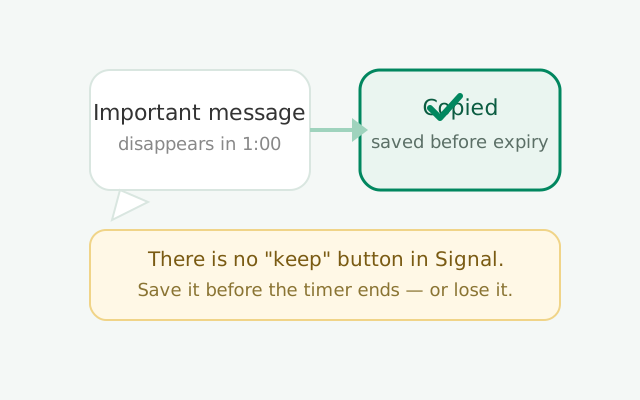
Why there is no keep button
A keep button would break the promise
Let us start with the design philosophy, because it explains everything else on this page. Disappearing messages are a promise: after this long, the message is gone from every device. A "keep this message" button would break that promise completely. The other person turned on the timer trusting that nothing could be pinned down afterward. If either side could quietly exempt messages from deletion, the whole feature would be theater.
Not an oversight: the entire point
This is not an oversight that Signal forgot to build. It is the entire point. Every disappearing-messages implementation that takes itself seriously works this way. The deletion has to be reliable and total, or nobody would trust the feature for sensitive conversations in the first place.
Preserve before expiry, not after
That is the bad news and the good news in one. Bad news: there is no official way to keep a disappearing message in place after the fact. Good news: the system is honest about it. What you see is what you get, and anything you want to preserve has to be preserved before expiry, while the message still exists. Every method below follows that rule.
The timer deletes from devices, not from reality
One more thing to get straight: the timer deletes from your devices, not from reality. Signal cannot stop someone from photographing their screen with another phone, and no messenger can. Disappearing messages protect against casual retention: old chats sitting on a lost phone, a backup someone digs through, a shoulder-surfer next week. They do not protect against a determined recipient who wants a copy. Keep that threat model in mind and the rest of this guide makes sense.
Copy text before it expires
The simplest method, and the one people forget: while the message is still on your screen, long-press it and copy the text. Paste it into your notes app, an email draft, your Note to Self, anywhere outside the disappearing chat. The copy you make is a normal piece of text with no timer attached.
This works because disappearing messages only manage messages inside Signal's chat. Once you copy text out of the chat, it is just text on your clipboard, and Signal has no claim on it. Paste it into a notes app and it stays there like any other note.
Practical tips for making this reliable:
- Do it the moment you realize something is worth keeping. Do not think "I will copy that later." Later is when the timer wins. The people who lose messages are always the ones who planned to save them eventually.
- Copy the full context, not just the message. Paste who sent it and when, or you will find a note six months from now that says "arrive by 3" with no idea who is arriving or where.
- For long messages, select carefully. Long-press, drag the selection handles to cover the whole text, then copy. Rushing this on a timer is how you end up with half a message.
- Paste somewhere you will actually find it. A note titled "Signal saves" or a dedicated chat beats a random paste into a random app.
This is the method with the fewest moving parts and the fewest surprises. Text is text. Copy it, move it, done.
Forward messages and save media
For photos, videos, voice notes, and files, copying text is not enough. You need the actual file. While the message still exists:
- Save media to your phone. Open the photo or video and save it to your gallery or files. A saved photo is a normal file on your phone with no timer. This is the single most useful habit for disappearing chats: see a photo you want, save it now.
- Forward the message to another chat. You can forward a disappearing message to a non-disappearing chat. Your Note to Self is the natural destination. The forwarded copy is a new message in a chat with no timer, so it stays. This works for text, photos, and files alike.
- Download files immediately. If someone sends a document in a disappearing chat, download it to your phone's storage before the timer ends. Once the file is on your device, the chat's timer cannot touch it.
The theme is the same as copying text: get the content out of the timed chat and into an untimed place. Note to Self is ideal for this because it is a chat with no timer, it is private to you, and it syncs across your devices. Our Note to Self guide covers setting it up as your personal keeper space.
One caveat on forwarding: the forwarded message still shows who originally sent it in most cases, which is good for context. But remember that forwarding moves content into a chat where it will not disappear. Do not forward sensitive disappearing content into a group chat or a shared device's chat without thinking. The whole point of the timer was ephemerality; forwarded copies inherit none of it.
Screenshots and screen recording
The blunt instrument: screenshot the message before it vanishes. It always works, on every phone, with no special setup. Open the chat, capture the screen, and you have a permanent image of the conversation.
Now the honest caveats, because there are two:
- Signal does not notify the other person about screenshots. Signal never sends a "so-and-so took a screenshot" alert. That goes for regular chats and view-once media alike. So technically, screenshots are silent.
- Silent does not mean right. This is the ethics part, and we will keep it to one paragraph: if someone set a disappearing timer, they did it because they wanted the conversation to be temporary. Screenshotting their messages behind their back breaks the trust the timer represents. Sometimes you have a legitimate reason: keeping an address, a receipt, evidence of something. Often it is just easier than asking. When it is the second one, ask. A one-line "mind if I save that address?" costs nothing and keeps the trust intact.
Screen recording is the same idea for longer content. Scrolling through a conversation while recording captures everything on screen as video. Same capabilities, same caveats, same one-paragraph ethics note.
Also note: screenshots can be blocked by screen security. If the other person (or you) has screen security enabled, screenshots of the chat come out black. Screen security is specifically designed to stop casual capture. If you hit a black screenshot, that is the feature working as intended. It is also a strong hint that the other party does not want copies made.
Ask to turn the timer off
Here is the method people overlook because it feels too simple: ask the other person to turn off the disappearing timer. Or turn it off yourself and tell them why.
Disappearing timers are a shared setting in a conversation. Either side can change it. If a chat has drifted from "sensitive discussion" to "planning a trip and I need the details to stick around," the honest fix is to change the setting, not to fight it. One of you opens the chat settings, sets disappearing messages to off, and from then on everything stays.
This is also the right answer when the timer was set by accident or by a default. Plenty of people enable a default timer for new chats and then realize one particular conversation should keep its history. The fix is not a workaround. It is the setting itself. Open the chat, turn the timer off, done. No tricks needed.
The conversation to have is short: "Hey, can we turn off the disappearing timer for this chat? I want to keep the plans we are making." Most people say yes. And if they say no, that "no" is information. They want the conversation temporary, and you should respect that rather than screenshotting around it.
Route keepers to Note to Self
If you regularly find yourself wanting to keep things from disappearing chats, build a habit instead of improvising each time: make Note to Self your keeper inbox.
The workflow: in any disappearing chat, when something is worth keeping, forward it (or copy it) to Note to Self immediately. Note to Self is a private chat with yourself. There is no timer unless you set one, so forwarded content stays put. It is searchable, it syncs across your linked devices, and it is the one chat where "keep everything" is the entire point.
This habit beats every other method for one reason: it is fast. Forwarding takes two taps. Copying to a notes app takes six. Screenshotting takes three plus organizing the image later. When a timer is running, speed is everything, and the two-tap forward wins.
Set it up now, before you need it: open Signal, find Note to Self in your chat list (it is built in), and maybe pin it so it is always at the top. Then the next time a disappearing message matters, your keeper inbox is one forward away. Combine it with a sensible default timer and you get the best of both worlds: everything disappears on schedule, and the few things worth keeping land in your inbox before they vanish.
What does NOT work
Let us clear out the myths, because bad advice on this topic is everywhere:
- Backups will not bring back expired messages. Signal's Secure Backups only contain what existed at backup time. A message that already disappeared is not in the backup. And messages with timers of 24 hours or less are excluded from backups entirely. They were never saved in the first place.
- Turning off the timer does not resurrect old messages. Disabling disappearing messages stops future deletions. Everything that already vanished stays vanished. There is no undo.
- Reinstalling the app changes nothing. A fresh install restores from your backup, which, as just covered, does not contain expired messages. Reinstalling is not a time machine.
- The other person's phone does not have a secret copy. When a message's timer expires, it is deleted from every participant's device. There is no "but maybe their copy survived." That guarantee is the whole point of the feature, and Signal keeps it.
- Airplane mode tricks do not work. The folk wisdom says: turn on airplane mode, open the chat, screenshot, and the deletion will not sync. This misunderstands how the timer works. The countdown and deletion happen on each device independently. Your phone deletes the message on its own schedule whether or not it can reach the network. Airplane mode buys you nothing.
- Notification history is not an archive. Some people hope their phone's notification log kept the message text. Notification history is fragmentary, short-lived, and unreliable. It is not a backup strategy, and it misses most content types entirely.
The pattern: anything that claims to recover a message after its timer expired is either a misunderstanding or a scam. Which brings us to the scam.
The "recover deleted messages" scam
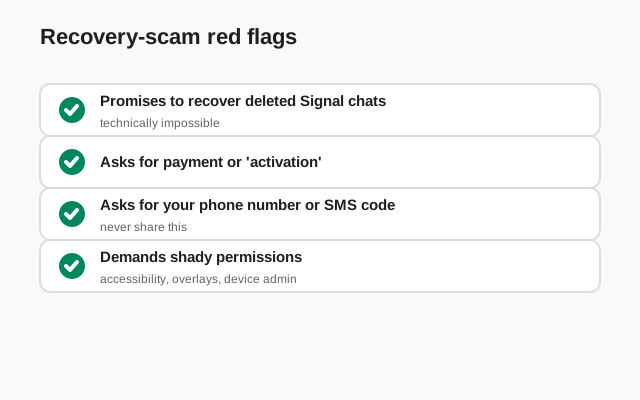
Search for this topic and you will find apps and websites promising to "recover deleted Signal messages" or "read disappearing messages after expiry." They do not work, and many are outright malicious.
Here is why they cannot work: when a disappearing message's timer expires, Signal deletes it from the device's encrypted database. There is no hidden copy, no recycle bin, no server-side archive to pull from. Signal's servers never had the message content in the first place. Recovery would require breaking the phone's encryption and carving deleted database records, which is forensics-lab territory, not a consumer app.
What those apps actually do, in the best case, is nothing. They show you a spinner and then an error. In the worst case, they are malware: they ask for accessibility permissions, notification access, or device-admin rights, and then they harvest everything on your phone. An app that asks for deep permissions to "recover" messages is telling you exactly what it plans to steal.
The rule: never install a "Signal message recovery" app. No exceptions. If the message mattered, the time to save it was before the timer ran out, using the methods above. After expiry, it is gone. Anyone who tells you otherwise is selling something.
The consent question, briefly
We promised to keep this short and non-preachy, so here it is in one paragraph: disappearing messages are a two-person agreement. When someone enables a timer, or agrees to chat under one, they are telling you "I want this to be temporary." Saving the occasional address or receipt is normal life. Systematically archiving someone's disappearing messages without their knowledge breaks the deal. If you find yourself wanting to keep everything from a disappearing chat, the honest move is the one from the section above: ask to turn the timer off. If they say no, believe them.
What works vs what doesn't: the full picture
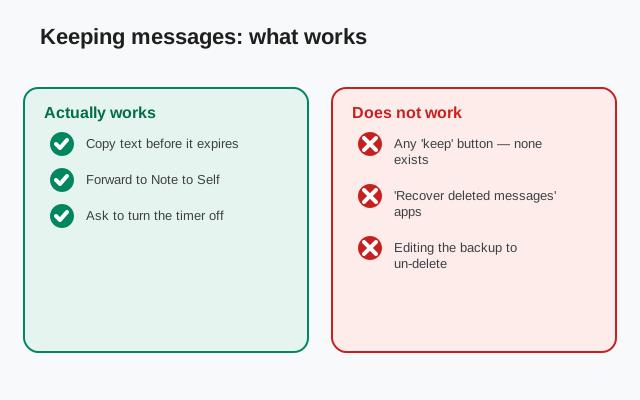
| Method | Works? | When | Notes |
|---|---|---|---|
| Copy text / save media / forward | Yes | Before expiry | The honest standard method |
| Forward to Note to Self | Yes | Before expiry | Fastest keeper habit |
| Screenshot / screen recording | Yes, technically | Before expiry | Blocked by screen security; mind the trust issue |
| Turn the timer off by agreement | Yes | Any time | The cleanest fix when the chat's purpose changed |
| Restore from backup | No | Never | Expired messages are not in backups |
| Reinstall the app | No | Never | Restores the same backup, minus expired messages |
| Airplane mode tricks | No | Never | Deletion happens per-device, not over the network |
| "Recovery" apps | No: often malware | Never | Never install these |
Common mistakes
- Waiting until later to save something. The number-one way messages are lost. If it matters, save it now.
- Assuming the timer starts on send. It starts on view. But do not use that as an excuse to dawdle. Once read, the clock is real.
- Forgetting that forwarding kills the timer. A forwarded copy in a normal chat stays forever. Do not forward sensitive disappearing content somewhere it will live on.
- Installing recovery apps. Covered above. They do not work, and the bad ones steal your data.
- Screenshotting against someone's clear wishes. If they enabled screen security or asked for the timer, respect it or ask. Do not sneak around it.
- Keeping everything "just in case." If you are saving every message from a disappearing chat, you do not want disappearing messages. You want the timer off. Be honest about which one you need.
The bottom line: there is no keep button, by design, and there should not be. Save what matters before the timer ends (copy, forward, or screenshot), keep a Note to Self inbox for the keepers, and when a chat stops being temporary, have the ten-second conversation to turn the timer off. Everything else is either a myth or malware.
Frequently asked questions
Is there a keep button for disappearing messages on Signal?
No. Signal deliberately offers no way to exempt a message from the disappearing timer. The feature's entire promise is that messages vanish on schedule from every device.
Can you recover expired disappearing messages on Signal?
No. Once the timer expires, the message is deleted from every participant's device and is not in backups. Reinstalling, restoring, and airplane-mode tricks do not bring it back.
Do screenshots notify the other person on Signal?
No, Signal does not send screenshot notifications for regular chats. But screen security can block screenshots entirely, and screenshotting someone's timed messages without asking breaks the trust the timer represents.
Can I forward a disappearing message before it expires?
Yes. Forwarding a message to a chat without a timer, like your Note to Self, creates a permanent copy. Do this before the timer runs out, and remember the copy will not disappear.
Do 'recover deleted Signal messages' apps work?
No. Expired messages are deleted from the encrypted database and Signal's servers never stored them. These apps cannot recover anything; many are malware harvesting your data through excessive permissions.
Does turning off the timer bring back old messages?
No. Disabling disappearing messages only stops future deletions. Messages that already expired stay gone permanently.
Keep reading
- disappearing messages overview: how timers work in detail
- default disappearing timer: set one timer for all new chats
- Note to Self: your private keeper inbox for forwarded content
- Signal Secure Backups: what backups actually contain