
How Signal Stickers Work: Packs, Installs and Creating Your Own
Published: October 7, 2026
Stickers are the big expressive images you send instead of (or next to) text: bigger than emoji, often funnier, and a Signal feature that has been around for years. This guide covers installing packs, managing them, making your own pack with the official Sticker Creator, animated stickers, and the honest privacy picture.
from Signal's official site — file hosted by Signal, not by us
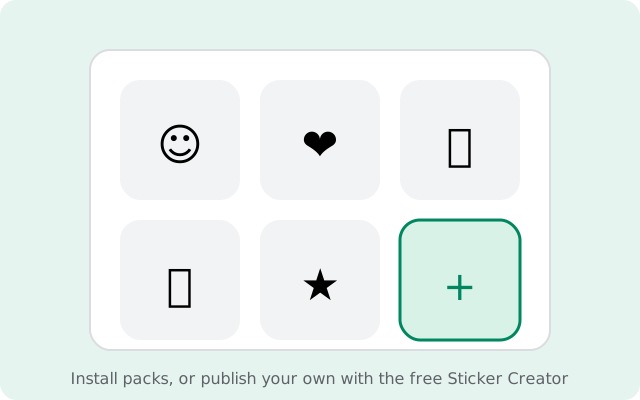
What a Signal sticker pack is
A sticker pack is a bundle of sticker images that you can install once and then use in any chat. Instead of hunting for the same photo every time, you send a sticker with two taps. Packs live on your device after installation; sending one in a chat is just sending a message with an image attached.
Signal ships with a small set of default packs, and the real variety comes from packs made by other people (friends, communities, artists), shared as links. Tapping a sticker someone sends you shows the pack it came from, so packs spread naturally through conversations.
One important design choice: stickers are not pulled from a giant public store like emoji. They travel by link. Someone shares a pack link (or you find one in a community), you open it, and you install the pack. That link-based design is also what makes creating your own pack simple.
Install sticker packs
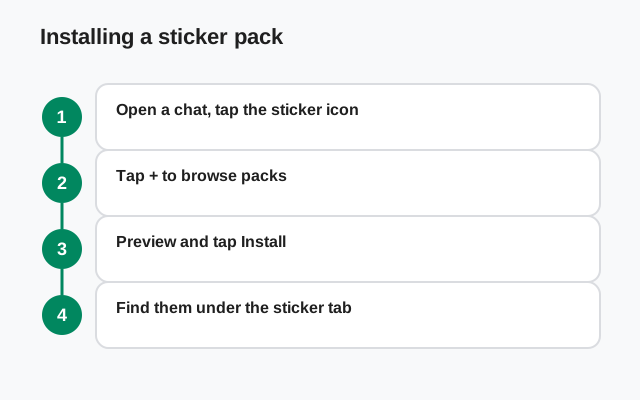
There are two ways to add packs:
From the sticker picker
Open any chat, tap the sticker icon next to the emoji button, and look for the option to browse or add packs. This shows packs available to you, including defaults.
From a pack link
Open a sticker pack link shared with you (in a chat, on a website, in a community). Signal opens a preview of the pack. Tap install, and the pack appears in your sticker picker.
Installation is instant and free: no payment, no account, no app restart. After installing, the pack shows up in the sticker picker in every chat, ordered with your other packs.
Manage your packs
Packs pile up fast, and a picker with forty packs is slower than one with five. Keep yours tidy:
- Reorder packs: put your favorites at the front so your most-used stickers are one tap away.
- Remove packs you do not use: deleting a pack from your picker frees clutter, not storage space that matters. It makes sending stickers faster.
- Reinstall any time: removing a pack is not permanent. If you kept the link, or if a friend sends you one of its stickers again, you can reinstall it in seconds.
Removing a pack from your picker does not delete anything from chats where you already sent its stickers. Those messages stay exactly as they are.
Create your own sticker pack
This is the fun part. Signal offers a free Sticker Creator tool for computers, and the whole process is link-based: no app review, no store submission:
Get the Sticker Creator
Download Signal's official Sticker Creator from signal.org and open it on your computer.
Add your images
Drag in your sticker images: PNG files with transparent backgrounds work best. The tool shows you how each sticker will look.
Set the cover
Pick one sticker as the pack's cover image so it is recognizable in the picker.
Publish
The creator publishes your pack and gives you a shareable link. Anyone who opens that link can preview and install your pack.
Install it yourself
Open your own pack link on your phone to install it, and share the link with friends or communities.
For best results, use images with clean transparent backgrounds and strong contrast. Stickers display small in the picker, so simple designs read better than busy photos. Keep each image under the tool's size limits and you are fine.
Animated stickers
Signal supports animated stickers (APNG format). They move in the chat like tiny looping animations, and they install and send exactly like static stickers. A pack can mix static and animated stickers.
When you make an animated sticker in the Sticker Creator, keep the loop short and the file small: a two-second loop reads better than a ten-second one, and smaller files send and load faster for your recipients. Animated stickers play automatically when they appear in a chat, just like in the pack preview.
Sticker tips that save taps
A few small habits make stickers much faster to use day to day:
- Use recent stickers. The sticker picker keeps your recently used stickers at the front, so the five you actually send are always within reach without opening a pack.
- Keep three to five packs installed. That is the sweet spot: enough variety for every mood, few enough that you can find a sticker in seconds. Anything more becomes a scroll.
- Discover packs through chats. When someone sends a sticker you like, tap it to see its pack and install the whole thing. This is the fastest way to build a collection you actually enjoy, because every pack was pre-approved by a real conversation.
- Check before sending to new contacts. Stickers carry tone. An inside-joke sticker from one friend group can read oddly in a work chat. Glance at the pack cover before you send somewhere new.
And if stickers stop being fun (the picker feels bloated, or you keep sending the wrong ones), remove packs aggressively. A lean picker beats a big one.
Sticker privacy: what pack creators see
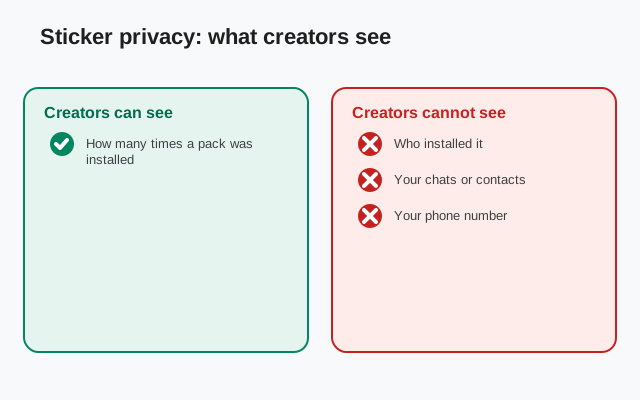
Here is the honest picture, kept to what is actually verifiable about how the feature behaves:
- Sending a sticker is sending a message. Everyone in the chat sees it, including the sticker image itself. There is nothing private about a sent sticker inside the chat.
- Anyone can discover the pack. Tap a sticker in a chat and Signal shows the pack it came from, with an option to install it. That means your sticker pack spreads everywhere the stickers are sent.
- Pack links are public by design. Anyone who opens your pack link can install it. There is no friend-only or approval-based sharing; treat every pack link like a public page.
- Installing a pack is private to you. Adding a pack to your picker does not notify the creator or anyone else. Using stickers does not broadcast your pack list to contacts.
The bottom line: creators cannot see who installed their pack, but anything you put in a pack should be treated as public. And anything you send as a sticker is as visible, and as forwardable, as any other message in that chat.
Sticker pack checklist
| Step | What to do |
|---|---|
| Install | Sticker picker in any chat, or open a pack link and tap install |
| Organize | Reorder favorites to the front; remove packs you stopped using |
| Create | Official Sticker Creator on a computer → publish → share the link |
| Design | Transparent PNGs, simple high-contrast art; APNG for animated stickers |
| Privacy | Sent stickers are visible to the whole chat; pack links are public; keep packs clean |
Stickers are one of several expressive features in Signal. For the rest (reactions, stories, disappearing media), the Signal features hub has the full collection of guides on this site.
FAQ
How do I install a sticker pack in Signal?
Open any chat, tap the sticker icon next to the emoji button, and browse available packs. Or open a sticker pack link shared with you and tap install when Signal previews it.
Can I make my own Signal stickers?
Yes. Use Signal's free Sticker Creator tool on a computer, add your images, publish the pack, and you get a link anyone can use to install it.
Does Signal support animated stickers?
Yes, in APNG format. They install and send like static stickers and play automatically in chats.
Can the creator of a sticker pack see who installed it?
No. Installing a pack is private to you; the creator is not notified. But remember that sent stickers are visible to everyone in the chat, and anyone can tap a sticker to view and install its pack.
Are sticker packs free?
Yes. Installing, creating, and sharing sticker packs in Signal is completely free.
What happens if I remove a sticker pack?
It leaves your picker, but stickers you already sent stay in chats. You can reinstall the pack any time from its link.
Keep reading
- how Signal stories work: posting, viewers and audience controls
- disappearing message timers: per-chat timers and defaults
- view-once photos: send media that vanishes after one view
- usernames without your number: chat without sharing your digits
- stickers not downloading: the fix guide