
How to use Signal on an Android tablet as a linked device
Published: October 7, 2026 Updated: October 8, 2026
An Android tablet runs Signal as a linked device, not as a second phone. Your phone stays the primary device that holds the account; the tablet links to it with the same QR-code flow as Signal Desktop. The one decision that matters happens during linking: accept the history transfer and your full chat history plus roughly 45 days of media land on the tablet; skip it and the tablet starts empty, receiving only new messages. Everything below (the steps, the rules, and the honest limits) follows from that linked-device design.
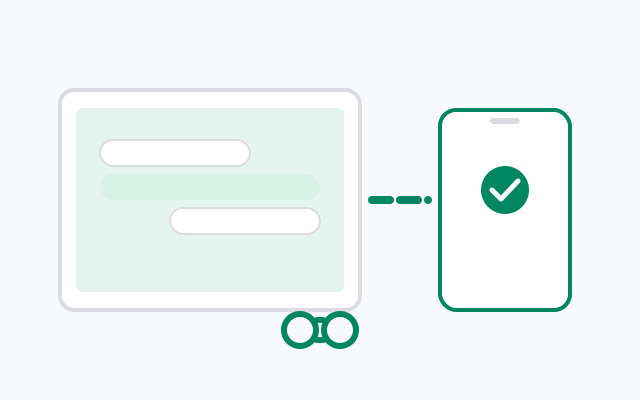
Tablet vs second phone vs Desktop: what you're actually getting
People arrive at this page with three different setups in mind, and they behave differently. Here's the map:
| Tablet as linked device | Second phone linked | Signal Desktop | |
|---|---|---|---|
| Role | Linked device, phone stays primary | Linked device (companion mode), phone stays primary | Linked device, phone stays primary |
| Linking method | QR code scanned from the primary phone | Same QR flow as the tablet | QR code scanned from the primary phone |
| History at link time | Optional one-time transfer: full history + ~45 days of media | Same one-time transfer option | Same one-time transfer offer: full history + ~45 days of media |
| Works with phone off? | Yes, once linked | Yes, once linked | Yes, once linked |
| Counts toward 5-device limit? | Yes | Yes | Yes |
| Needs phone online every 30 days? | Yes | Yes | Yes |
| Best for | Reading and replying on a bigger screen at home | Carrying Signal on two phones | Full keyboard, all-day desktop use |
The important row is the third one: every linked device (tablet, second phone, or Desktop) gets the same one-time history-transfer offer during linking (full history + ~45 days of media). Skip it on any device and it starts empty. The transfer only happens once, during linking.
One number, one primary. Your phone number can only be the primary on one device. A tablet can't "also" be a primary. Registering the number fresh on the tablet would move the account off your phone. Always choose the linked/companion path on the tablet.
Before you link: the short checklist
- Signal working on your phone. The phone is the primary. It must be registered, up to date, and able to receive messages. Update it first; version skew between phone and tablet is a classic linking-failure cause.
- Signal installed on the tablet, from the Play Store or the official APK from signal.org/android/apk (website build 8.29.3, package org.thoughtcrime.securesms) on tablets without Play. Same signing-key rule as everywhere: the website build can't install over a Play build.
- Camera permission granted on the phone. The in-app scanner needs it.
- Both devices on working internet. Same network not required; different networks, different countries, all fine.
- Decide about history now. Read the history section before you start, because the question comes mid-flow and there's no "decide later" button.
from Signal's official download page installers are hosted by Signal, not by us
Linking the tablet, step by step
Open Signal on the tablet and choose the linked-device path
On first launch, the app offers to link as a companion device instead of registering a new number. Choose that. A QR code appears on the tablet screen. (If you see chats instead of a code, the tablet is already linked to something.)
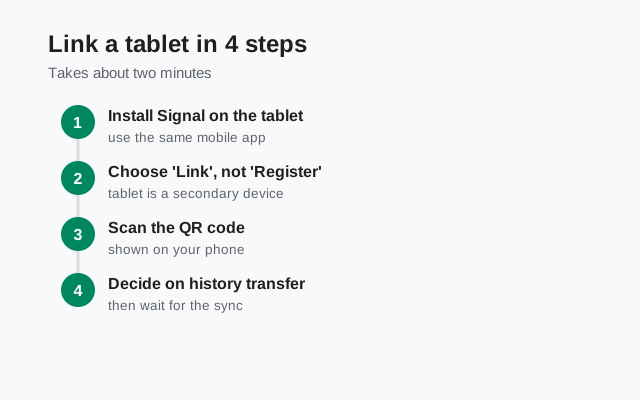
Link, don’t register. Registering moves the account instead. On your phone: Settings Linked devices Link a new device
The phone may ask for your fingerprint, face, or device PIN first. That's the security check proving the person holding the phone is you.
Scan the tablet's code with the in-app scanner
Hold the phone 1530 cm from the tablet, steady and straight-on. Don't use the camera app or a generic QR reader. Only Signal's built-in scanner understands the linking code. The code expires after a few minutes, so scan promptly.
Answer the history-transfer question
This is the one-time offer described below. Read it carefully. It's the highest-stakes tap in the whole flow.
Approve and name the device
Confirm on the phone. Give the tablet a recognizable name ("Kitchen tablet" beats "SM-X710"). It's what you'll see in the Linked devices list for years.
Chats start appearing on the tablet within a minute. If the QR step fights you, the QR troubleshooting guide was written for Desktop but the causes are identical: camera permission, stale code, version skew.
The history-transfer decision
This is the highest-stakes tap in the whole flow, so understand it fully:
| Your choice | What lands on the tablet |
|---|---|
| Accept the transfer | Your full chat history, plus media from roughly the last 45 days. Contacts, groups, and your profile come along. |
| Skip | An empty chat list. From this moment on, new messages arrive on both devices, but nothing from before the link ever appears on the tablet. |
There is no transfer-later button. Skipped by accident? The only path is to unlink the tablet (phone: Settings Linked devices tap it Unlink) and link it again, accepting the transfer the second time. Our remote-unlink guide walks through that.
Why only ~45 days of media? Full media libraries can be enormous; the transfer caps media age to keep the process from taking hours. Text history isn't capped the same way. It's the photos and videos that get the window.
After linking: what syncs and what doesn't
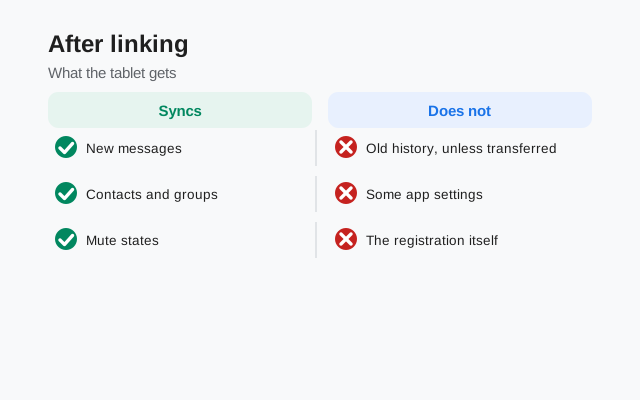
- New messages arrive on both devices within seconds, whichever screen you're looking at.
- Read states sync: reading a chat on the tablet marks it read on the phone too.
- The tablet works with the phone off. Once linked, each device keeps its own encrypted copy of incoming messages. Phone in a drawer with a dead battery? The tablet still sends and receives.
- Settings mostly live on the phone. Account-level changes (PIN, registration, linked-device management) happen on the primary. The tablet is a window into the account, not its control room.
- Pre-link messages you skipped never arrive later. Only messages received after the link sync across. This surprises people once, then never again.
The rules that govern linked devices
Three numbers run the whole linked-device system. Memorize them and you'll never be surprised:
- 5 devices max. One account supports up to 5 linked devices in any mix: tablets, desktops, second phones. Hit the cap and the phone tells you; unlink a retired device to make room.
- 30-day primary rule. Your phone, the primary, must come online at least once every 30 days. If the primary stays dark longer than that, linked devices stop working until the phone checks in. A phone sitting in a drawer for two months will silently break the tablet's connection.
- 45-day idle auto-unlink. A linked device that goes 45 days without activity is automatically unlinked for security. Going on a long trip without the tablet? Expect to re-link it when you return. That's the system working as designed, not a bug.
And make the audit a habit: once or twice a year, open Settings Linked devices on your phone and confirm every entry is a device you still own. Twenty seconds, twice a year, is the entire maintenance cost of a multi-device setup.
If linking fails
The short list of usual suspects, in order of likelihood: the phone's camera permission is denied; the QR code expired while you were reading this guide (quit and reopen the tablet app for a fresh one); one side is running an old version; or a network is blocking the connection. The QR troubleshooting guide walks all seven causes in order. If linking succeeds but messages never arrive afterward, that's a different problem. See linked device not syncing.
from Signal's official site file hosted by Signal, not by us
Frequently asked questions
Can a tablet be a second primary Signal device?
No. One phone number means one primary device. The tablet links as a companion device with a QR code; registering the number fresh on the tablet would move the account off your phone.
Will my old chats appear on the tablet?
Only if you accept the one-time history transfer during linking: full history plus media from roughly the last 45 days. Skipped transfers can't be done later without unlinking and re-linking.
Does the tablet work when my phone is off?
Yes. Once linked, the tablet sends and receives independently. But the phone must come online at least once every 30 days or linked devices stop working.
How many devices can I link to one Signal account?
Up to 5 linked devices in any mix of tablets, desktops, and second phones.
My tablet got unlinked while I was away. Why?
Linked devices idle for 45 days are automatically unlinked. Just link it again with the QR code when you return.
Is the tablet linking flow the same as a second phone?
Yes. Second phones link in the same companion mode with the same QR flow, history-transfer option, and device limits.
Keep reading
- the QR linking walkthrough: the same flow for computers
- running Signal on a Chromebook: Chromebooks link the same way
- unlinking a device remotely: removing tablet access from your phone
- linked device not syncing: when messages stop arriving