
Signal Desktop won't update? Here's how to fix stuck or failed updates
Published: October 7, 2026 · Updated: October 8, 2026
A failed Signal Desktop update is fixed the same way on every OS: skip the broken updater and install the latest version directly. On Windows, updates stall on admin rights or a locked updater process. On Mac, the in-app updater sometimes fails silently after a macOS upgrade. On Linux, updates come through the package repository. An update failure there is really a repo failure. In all three cases, downloading the current build from signal.org/download and installing over the top replaces the broken update mechanism and keeps your chats exactly where they are.
How Desktop updates actually work
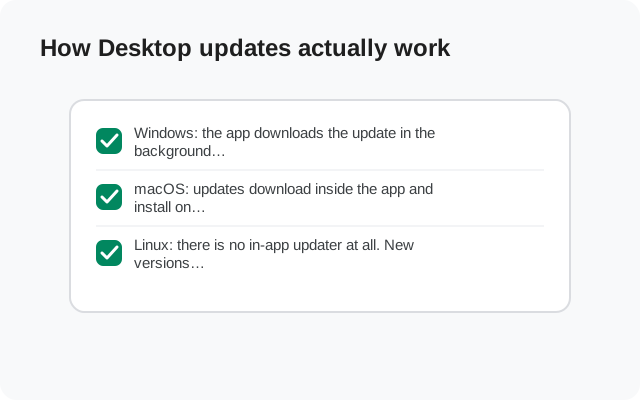
Before fixing the failure, it helps to know which machinery is failing, because the updater is different on each operating system:
- Windows: the app downloads the update in the background and applies it on the next launch, with a helper that needs write access to the install folder. Anything that locks that folder (antivirus, a pending reboot, a second running copy) breaks the apply step.
- macOS: updates download inside the app and install on relaunch. macOS's own app-verification can then stall the first launch of the new version, which looks like a failed update even though the update itself succeeded.
- Linux: there is no in-app updater at all. New versions arrive through Signal's official package repository like any other system update. "Update failed" on Linux means the package manager couldn't fetch or apply the new package. Usually it is a repo key or network issue.
One rule covers all three: never download a "Signal update" from anywhere except Signal's own pages. Fake updater downloads are a classic malware lure. The only legitimate sources are signal.org/download and, on Linux, the official repository.
Failure map: OS, cause, fix
Match your symptom to the row and go straight to the fix:
| OS | Symptom | Likely cause | Fix |
|---|---|---|---|
| Windows | Update downloads but never applies | Updater locked out of the install folder / pending reboot | Close all Signal processes, reboot, then install the latest build over the top |
| Windows | "Update failed" immediately | Antivirus blocking the updater, or no write permission | Whitelist Signal's folder in antivirus; run one launch as administrator |
| macOS | Update installs, app won't relaunch | App-verification gate or revoked permissions | Right-click → Open once; check Privacy & Security permissions |
| macOS | Update check spins forever | Network or proxy blocking the update server | Check VPN/proxy; install the latest build over the top |
| Linux | Package manager reports a signature/key error | Expired or missing repository signing key | Re-add the official repository key per the Linux install guide |
| Linux | No update offered for weeks | Repo not enabled or package list stale | Refresh package lists; confirm the Signal repo is enabled |
from Signal's official download page — installers are hosted by Signal, not by us
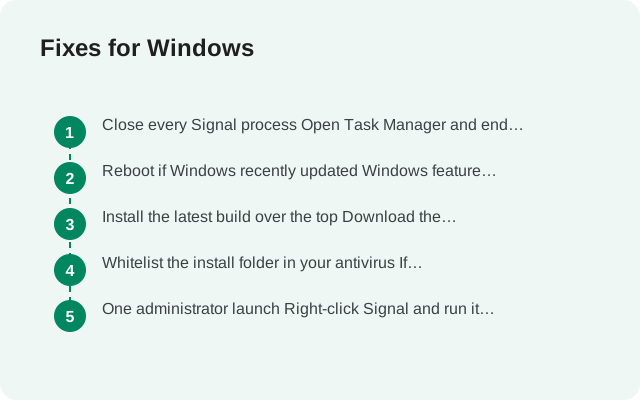
Fixes for Windows
Close every Signal process
Open Task Manager and end any Signal or updater processes still running. An update can't replace files that are in use. A half-dead background process is the most common reason the apply step stalls.
Reboot if Windows recently updated
Windows feature updates leave file locks and pending renames behind. A restart clears them, and the number of "update failed" cases that vanish after a reboot is embarrassingly high.
Install the Windows build over the top
Download the current Windows installer from signal.org/download and run it without uninstalling. This is the universal fix: it bypasses the broken in-app updater entirely and leaves your linked account and message database untouched.
Whitelist the install folder in your antivirus
If updates fail repeatedly, check whether your antivirus is quarantining the updater helper. Add Signal's program folder to exclusions and retry. This is also the fix when the app updates fine but the next update fails the same way.
One administrator launch
Right-click Signal and run it as administrator once. This lets the updater finish any file operations that were blocked by permissions. You don't need to keep doing it. Normal launches work afterward.
Fixes for macOS
Distinguish "update failed" from "won't relaunch"
Check your Applications folder: if the app's version number changed, the update actually succeeded and macOS is now blocking the relaunch. That is the verification/permissions problem from the not-opening guide, not an update problem. Right-click → Open once, then check Privacy & Security.
Install the macOS build over the top
Download the current macOS installer from signal.org/download and run it. Same story as Windows: it replaces the broken update path and preserves your data. Use the build for your chip: Apple silicon or Intel.
Check for proxy or VPN interference
If the in-app update check spins forever, the updater may not be reaching Signal's servers. Temporarily disable VPNs or proxies and try the check again. Corporate networks with TLS inspection are a known blocker.
Free disk space
The updater downloads the full new build before applying it. If your disk is nearly full, the download silently fails. About This Mac → Storage will tell you in ten seconds.
Fixes for Linux
Linux has no in-app updater to break, so every "update failed" is a package problem. In order:
Refresh and retry
Update your package lists and reinstall the signal-desktop package. Transient mirror failures are common and a retry an hour later often just works.
Fix the repository key
If the package manager complains about signatures or an expired key, the repository's signing key needs refreshing. Re-add it following the official repository setup in our Linux install guide. This is the cause in the large majority of persistent Linux update failures.
Confirm you're on the official repo
If you installed Signal from a third-party PPA or a repackaged bundle, updates depend on that third party keeping up. They often don't. Switch to Signal's official repository and the update stream becomes reliable.
Check for held packages
If you (or a script) ever put the signal-desktop package on hold, no update will be offered until the hold is released. Package managers don't always surface this clearly, so check explicitly.
The "stuck at checking" and partial-update cases
Two special cases deserve their own notes:
- Stuck at "checking for updates": this is a network problem wearing an update costume. The updater can't reach the update server: VPN, proxy, firewall, or a network that blocks the connection. Fix the network path, or sidestep the updater entirely with the over-the-top install.
- Half-applied update (version mismatch errors): the old version's files and the new version's files are mixed. Don't try to repair it surgically. Close the app, install the latest build over the top, and let the installer sort out the file set.
- "You're already on the latest version" but you know you're not: the updater's cached state is stale. The over-the-top install doesn't care about the cache; it just puts the current files in place.
Version-skew warning: running a very old Desktop build against a current phone app can cause linking and sync oddities. Old protocol support eventually ages out. If your Desktop is many versions behind, update it before troubleshooting anything else. The sync troubleshooting guide assumes both sides are reasonably current.
Updating without losing chats
The short version: updates don't touch your message database. The over-the-top install replaces program files only; your linked account, settings, and chat history live in the config folder and survive every update. The ways people actually lose Desktop chats during "updates" are:
- Downloading a fake updater from a third-party site and installing malware instead (then panicking and wiping everything).
- Mistaking a launch failure for an update failure and deleting the config folder as a "fix." (See the not-opening guide for the safe order of operations.)
- Uninstalling with a "remove all data" option ticked in some third-party uninstaller tools.
Stick to Signal's own download page, install over the top, and your chats are never at risk from an update.
from Signal's official site — file hosted by Signal, not by us
Frequently asked questions
Will updating Signal Desktop delete my messages?
No. Updates replace program files only; your linked account and chat database survive every update, including over-the-top installs.
The update check spins forever. What do I do?
That's a network block, not an update bug: VPN, proxy, or firewall. Bypass it by installing the latest build directly from signal.org/download.
Why does my Linux system never offer Signal updates?
Updates come through the package repository. If the repo isn't enabled, the key expired, or the package is on hold, no update is offered. Refresh the repo setup.
Is it safe to download a Signal update from a third-party site?
No. Fake updater downloads are a common malware lure. Use only signal.org/download or the official Linux repository.
My update succeeded but the app won't open now. Help?
The update worked; the OS is blocking the relaunch. See the not-opening guide for the macOS verification fix and Windows quarantine check.
How far behind can my Desktop version fall before it matters?
Old builds eventually lose protocol compatibility with current phone apps, causing sync oddities. If you're many versions behind, update before troubleshooting anything else.
Keep reading
- fixing Desktop launch failures: when the app won't start at all
- linked device sync troubleshooting: for sync problems after updating
- the Linux install guide: official repository setup
- the Desktop guides hub: every Desktop guide in one place