
Voice and video calls on Signal Desktop: mic and camera setup
Published: October 7, 2026 Updated: October 8, 2026
Yes, Signal Desktop makes voice and video calls. Not just messages. Before your first call, two things have to be right: the correct microphone and camera selected in Signal's settings, and the operating system's permission granted to the app. Get those two right and most call problems never happen. This guide covers picking the right devices, granting permission on Windows, macOS, and Linux, running a two-minute test call, and fixing the classics: echo, no audio on one side, and Bluetooth headsets that refuse to cooperate.
What a desktop call needs
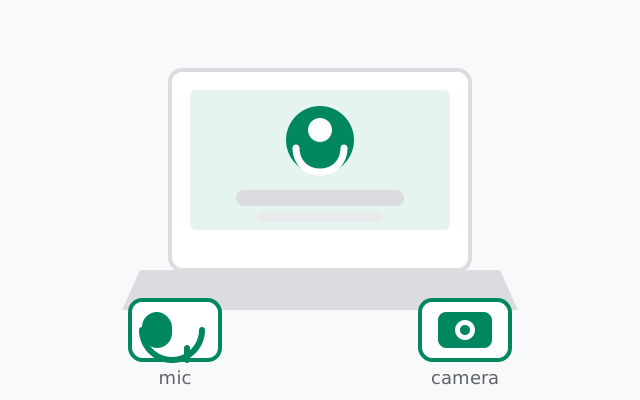
A Signal Desktop call is simpler than it feels. The ingredients:
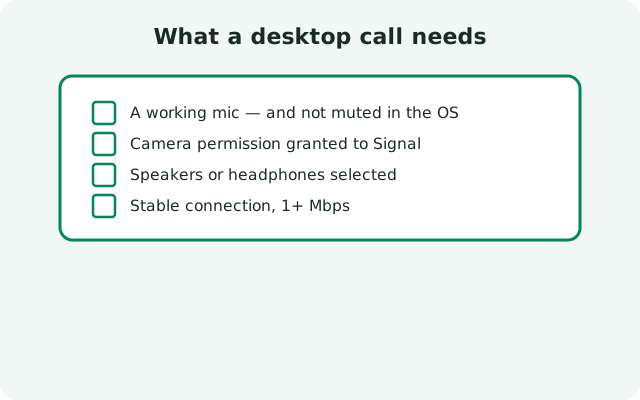
- A working mic, camera (for video), and speakers or headset. Laptop built-ins are fine to start.
- OS permission granted to Signal Desktop for the microphone and camera. Without it, the call connects and nobody hears or sees anything.
- A linked account. Your phone is the primary device; the desktop calls as one of your linked devices. Calls work phone-to-desktop, desktop-to-phone, and desktop-to-desktop.
- Reasonable internet. Voice is light; video wants a steady connection. (More on the network below.)
Calls are end-to-end encrypted, same as messages. The desktop does not get a weaker version of the cryptography. If you are curious how that works, the encryption explainer covers it without the math.
Picking the right mic, camera, and speakers
Most call failures are device-selection failures. Modern computers have several audio devices (the laptop mic, the webcam mic, a headset mic, a monitor's speakers), and both the OS and Signal have opinions about which one is "default." Opinions differ. Pick explicitly:
- Microphone: in Signal Desktop's settings, in the voice/video section, choose your mic by name. If you own a headset, choose the headset mic. It sits centimeters from your mouth and picks up a fraction of the room noise a laptop mic does.
- Camera: choose it by name too, especially if you have both a built-in and an external webcam. Close other apps that might be holding the camera. Only one app can use it at a time.
- Speakers: choose where you want to hear the other person. Headset speakers for privacy, laptop speakers for a group huddle around one machine.
The "default device" trap: "Default" means "whatever the OS picked," and the OS changes its mind when you plug and unplug things. After connecting a headset or a webcam, re-open Signal's settings and confirm the selection still points where you think it does.
Speak a few sentences after selecting: the OS sound settings show a live input meter, and if it dances when you talk, the mic path works. No movement means the wrong device or a permission problem. The permission check is next.
Granting permission, per OS
Every modern OS gates mic and camera access per app. Signal Desktop must appear in the allowed list, or calls silently fail:
| OS | Open this | Do this |
|---|---|---|
| Windows | Settings Privacy security Microphone, then Camera | Master access on, then Signal switched on in each list |
| macOS | System Settings Privacy Security Microphone, then Camera | Tick the checkbox next to Signal in each list |
| Linux | Your desktop's privacy/permissions settings (varies by desktop) | Confirm the portal prompt on first use; check per-app permissions for sandboxed builds |
Two permission facts that save hours:
- A denial is remembered. If you clicked "don't allow" once (or the OS defaulted to deny), reinstalling Signal does not reset it. You must flip the toggle manually in the OS settings above.
- macOS upgrades reset these. If calls worked last month and the mic is dead after an OS update, the permission screen is the first place to look, not the hardware.
On Linux, the first call usually triggers a system permission prompt (the desktop portal). If you dismissed it, the setting lives in your desktop environment's privacy panel. For Flatpak or otherwise sandboxed builds, confirm the sandbox was actually granted mic/camera access, since the official repository build is the only reference configuration.
The two-minute test call
Do this once, before the call that matters:
Check the mic path
In Signal Desktop's settings, select your mic, then speak and watch the OS input meter move. If it moves, your voice reaches the app.
Check the camera preview
Select your camera and confirm the preview shows you, not blackness. Black preview means permission denied or another app holding the camera.
Make a short real call
Call someone patient for thirty seconds: a friend, a family member. Ask two questions: "Can you hear me clearly?" and "Can you see me?" Then ask them to speak while you listen. Both directions, confirmed.
Check for echo on the test call
Ask the other person if they hear themselves. If yes, you have an echo problem to fix before the real call. See the echo section below.
If the test call works, your setup is done. Save the settings and stop fiddling. Most people break working call setups by "optimizing" them later.
Problem, cause, fix: the decision table
| Problem | Likely cause | Fix |
|---|---|---|
| They can't hear you | Wrong mic selected, mic muted, or OS permission denied | Reselect the mic by name; check the OS permission list; unmute |
| You can't hear them | Wrong output device selected | Reselect speakers/headset by name in settings |
| Echo for the other person | Your mic hears your speakers | Wear a headset; lower speaker volume; see the echo section |
| Camera shows black | Permission denied, or another app holds the camera | Grant OS permission; close video apps, browser tabs using the camera |
| Call connects then drops | Unstable network | Move closer to the router or plug in ethernet; try voice-only |
| Bluetooth pairs but call audio goes nowhere | Wrong Bluetooth profile active | Select the headset (voice) profile in OS sound settings |
| Audio stutters | CPU spike or weak connection | Close heavy apps; switch video off and stay on voice |
Work the table top to bottom for your symptom. Nine times out of ten the answer is in the first three rows: wrong device, muted, or permission.
from Signal's official download page installers are hosted by Signal, not by us
Echo, specifically
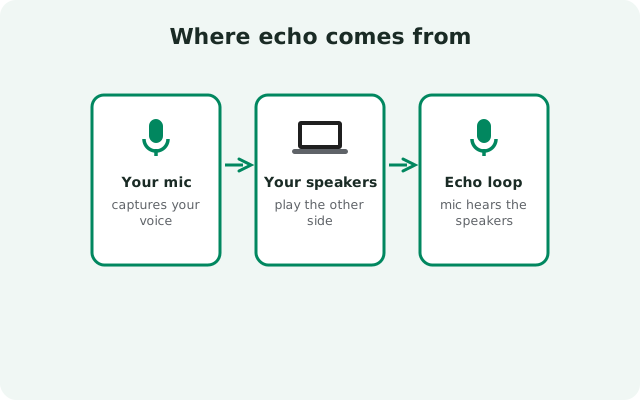
Echo is the most complained-about call problem and the simplest to understand: your microphone is hearing your speakers. Your voice goes out, comes back through their speakers into their mic, and returns to you delayed. You hear yourself half a second late, which makes normal speech nearly impossible.
The fixes, in order of effectiveness:
- Wear a headset. This ends echo completely: the mic can no longer hear the speakers because the speakers are in your ears. It is the single best call-quality upgrade that costs nothing if you already own earbuds.
- Lower your speaker volume. If no headset is available, turn the speakers down until the other person stops hearing themselves. Less sound in the room means less sound reaching your mic.
- Move the mic away from the speakers. Laptop users: the mic and speakers are centimeters apart by design. An external mic, or even just leaning back, increases the separation.
- Check both sides. Echo you hear is caused by their setup, not yours. If you hear yourself, the problem is on their end. Send them this page.
Software echo cancellation helps, but it is damage control, not a cure. A headset beats every algorithm.
Bluetooth headsets: the honest guide
Bluetooth headsets cause a disproportionate share of call grief, so here is the full picture:
- Pair in the OS first, then select in Signal. The headset must be connected at the OS level before Signal can see it. Pair it, confirm OS audio plays through it, then pick its mic and output in Signal's settings.
- Calls need the headset voice profile. Bluetooth headsets expose two personalities: a high-quality stereo profile for music and a lower-quality voice profile for calls. Calls need the voice profile. Yes, music will sound worse while it is active. That is normal Bluetooth behavior, not a bug, and it switches back afterward.
- Select the mic and the output. The classic failure is selecting the headset as the output but leaving the mic on the laptop. You hear them perfectly while they hear your room. Set both to the headset.
- Re-check after reconnecting. Bluetooth devices that disconnect and reconnect sometimes come back on the wrong profile. If a headset that worked yesterday fails today, the profile is suspect number one.
- Range matters. Bluetooth audio degrades with distance and walls. For an important call, sit near the computer. Or skip Bluetooth entirely and plug in.
When the network is the problem
When devices and permissions are right but calls still suffer, the network is what's left. Qualitative rules: no speed-test numbers needed:
- Voice is light, video is heavy. A connection that carries voice fine can still choke on video. If video pixelates or freezes, drop to voice-only for that call. It is a feature, not a defeat.
- Wired beats Wi-Fi, close Wi-Fi beats far Wi-Fi. Every wall and every meter costs stability. For calls that matter, plug in ethernet or sit near the router.
- Shared networks sag at peak times. Evening video calls on a busy household connection will stutter. Nothing is broken; the pipe is just full.
- VPNs and corporate firewalls interfere. Some work networks block the ports real-time calls need. If calls never connect on the office network but work fine at home, it is the firewall. Try the VPN off, or take the call on your phone's mobile data.
- One bad call does not mean a bad setup. Internet weather exists. If calls are usually fine and one drops, wait ten minutes and try again before changing settings.
Phone-side call problems have their own guides: calls not working and call quality cover the mobile half, and microphone troubleshooting goes deeper on mic issues specifically.
from Signal's official site file hosted by Signal, not by us
Frequently asked questions
Can Signal Desktop make video calls?
Yes. Voice and video calls both work on the desktop, phone-to-desktop and desktop-to-desktop, end-to-end encrypted like everything else in Signal.
Do both people need the desktop app to call?
No. Desktop-to-phone calls work fine. The other person just needs Signal on any device.
Why is my camera preview black?
Either the OS denied Signal camera permission, or another app is holding the camera. Grant permission in the OS privacy settings and close other video apps.
My Bluetooth headset works for music but not calls. Why?
Calls need the headset's voice profile, not the stereo music profile. Select the voice profile in your OS sound settings, and set both mic and output to the headset.
Are Signal Desktop calls encrypted?
Yes. Desktop calls use the same end-to-end encryption as phone calls and messages.
The call connects but drops after a few seconds. What is wrong?
That pattern is almost always the network: weak Wi-Fi, a saturated connection, or a corporate firewall. Try ethernet, voice-only, or a different network before touching settings.
Keep reading
- voice calls on the phone: the mobile calling guide
- video calls on the phone: group video on mobile
- fixing poor call quality: when the connection is the culprit
- calls not connecting at all: the deeper call troubleshooter