
Signal Video Calls: Setup, Quality & Controls Guide
Published: October 7, 2026 · Updated: October 8, 2026
Signal video calls bring face-to-face conversation to an encrypted messenger: no accounts beyond Signal, no meeting links, no per-minute charges. This guide covers starting calls, every in-call control, keeping data use sane, the honest state of screen sharing, and a step-by-step diagnostic for poor quality.
from Signal's official site — file hosted by Signal, not by us
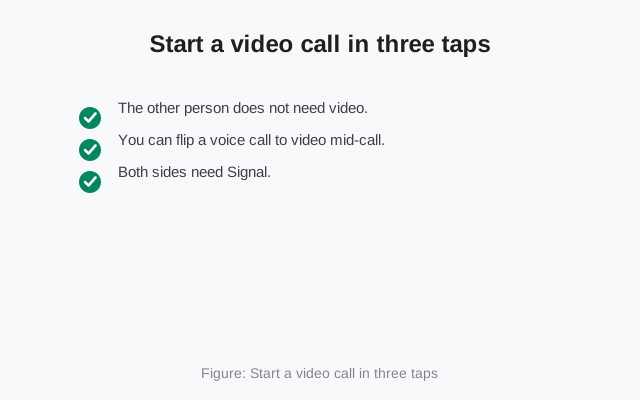
Start a video call in three taps
A Signal video call is a voice call with cameras. Open a one-to-one chat, tap the camera icon at the top, and the other person’s phone rings with a video-call invitation. They answer, both cameras (if enabled) come up, and you are talking face to face. The call is end-to-end encrypted, like everything else in Signal.
The first time you place or receive a call, Signal asks for camera and microphone permission. Grant both; without the camera permission you will join as audio-only, which is fine but probably not what you wanted.
Useful to know before you start:
- The other person does not need video. They can answer with their camera off and join as voice-only while you stay on video.
- You can flip a voice call to video mid-call. On the call screen, look for the camera toggle. No need to hang up and redial.
- Both sides need Signal. Video calls only work Signal-to-Signal, on phone or desktop.
The controls you will actually use
The in-call control bar is small on purpose. Here is what each control does:
- Camera on / off: the fastest privacy move on the call. Camera off means the other side sees a blank tile (or your avatar) and hears only your voice. Turning video off is also the single biggest data saver mid-call.
- Switch camera: flips between your front (selfie) and rear cameras. Show the other person what you are looking at without awkwardly turning the phone around.
- Mute: silences your microphone. On a video call with background noise (traffic, a TV, a windy street), mute the moment you are not speaking.
- Speaker / earpiece: choose where the other person’s voice comes out. Earpiece for private calls in public; speaker when your hands are busy.
- Raise hand: signals you want to speak without talking over someone. Borrowed from group calls, and just as useful one-to-one when audio is laggy.
- End call: the red button. The call entry, with its duration, lands in the chat history.
Keeping video calls light on data
Video is the hungriest thing Signal does. A long video call on mobile data will chew through a data allowance noticeably faster than a voice call. There is no magic low-data toggle to flip. The levers you have are behavioral, and they work:
- Use Wi-Fi whenever it is available. This is the whole strategy, honestly. A video call on Wi-Fi costs you effectively nothing.
- Camera off when you are not the focus. If you are mostly listening, kill your video. The call continues as voice for you, and your data use drops sharply.
- Keep it one-to-one when data is tight. Every extra video stream in a group call adds bandwidth. On a weak connection, a one-to-one video call survives where a group call stutters.
- Close the bandwidth hogs. Pause cloud photo uploads, app updates, and video streams on the phone during the call.
- When in doubt, drop to voice. Turning both cameras off turns the call into a voice call that sips data instead of gulping it. Audio almost always survives a connection that video cannot.
Screen sharing: what is real and what is not
Let us be precise here, because this is where most guides get sloppy. Signal supports screen sharing in calls, and it is most established on Signal Desktop. Share a window or your whole screen from the desktop app during a call. On Android, the in-call controls center on camera and microphone: you can see other people’s video, toggle your own camera, and switch lenses, but screen broadcasting from the phone is not the advertised workflow.
If you need to show your Android screen to someone on a call, the honest options today are:
- Do the call from Signal Desktop and share your screen there.
- Take a screenshot and send it in the chat. It is instant, and it stays encrypted like everything else.
- For walking someone through steps, a short screen recording sent as a video message often beats a live share anyway. They can pause and replay it.
Platform support for calling features moves with app updates, so if screen sharing from Android matters to you, check Signal’s current support documentation before planning around it.
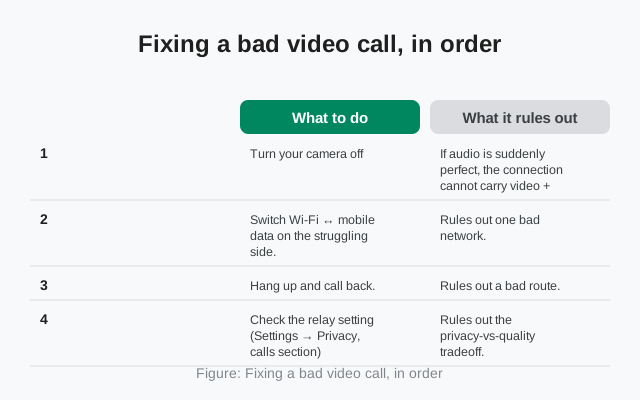
Fixing a bad video call, in order
When a video call goes wrong (frozen picture, robotic audio, one side black), work this table top to bottom. It is the information-gain element of this page: a diagnostic sequence where each step rules something out.
| Step | What to do | What it rules out |
|---|---|---|
| 1 | Turn your camera off, keep talking. | If audio is suddenly perfect, the connection cannot carry video + audio. Stay voice-only or move to Wi-Fi. |
| 2 | Switch Wi-Fi ↔ mobile data on the struggling side. | Rules out one bad network. Whichever link sounds better is the one to keep. |
| 3 | Hang up and call back. | Rules out a bad route. A fresh call often negotiates a better connection than a dying one. |
| 4 | Check the relay setting (Settings → Privacy, calls section): if relay is on, try it off, and vice versa. | Rules out the privacy-vs-quality tradeoff. Relay hides your IP but adds latency; direct is faster but exposes IPs. |
| 5 | Update Signal on both phones. | Rules out version mismatch, the classic cause of one-sided black screens. |
| 6 | Restart the phone. | Rules out a stuck camera or microphone driver, especially after the phone has been on for days. |
If the problem is specifically the microphone (you can see them, they cannot hear you), skip straight to our mic-not-working guide. For audio that is merely bad rather than broken, the call-quality guide goes deeper on networks and relay mode.
Group video calls: what changes with more people
Everything in this guide so far assumed one-to-one calls. When you move the same features into a group video call, three things change:
- Bandwidth multiplies. Each participant’s video is a stream your phone must receive. On a weak connection, join a group call with your camera off and treat it as voice-plus-a-window until the network proves itself.
- Layout matters. Grid view shows everyone; speaker view follows the talker. On a phone, the grid shrinks fast past a dozen people. If you are presenting to a group, consider joining from Signal Desktop, where the larger screen and sidebar view keep faces readable.
- Manners matter more than settings. Mute when not speaking, use raise hand, and keep the participant list open so you know who dropped and rejoined. The technical limits of a group call are generous (up to 75 people); the social limits arrive much earlier.
For the full group-call walkthrough (starting calls from a group chat, the ringing rules, and when a call link is the better tool), see our group video calls guide.
Video-call privacy, honestly stated
The video and audio of a Signal call are end-to-end encrypted: scrambled on your phone, unscrambled on theirs, unreadable to everything in between. What encryption does not do on a direct call is hide your IP address from the other person. For that, use the Always relay calls setting in Settings → Privacy, which routes the call through Signal’s servers at some cost to quality.
Two more things worth knowing:
- Your camera is never on before you answer. The other side cannot see or hear you until you pick up.
- Signal shows a clear indicator while your camera and mic are live. If the camera tile is off, you are not broadcasting video. There is no silent background streaming.
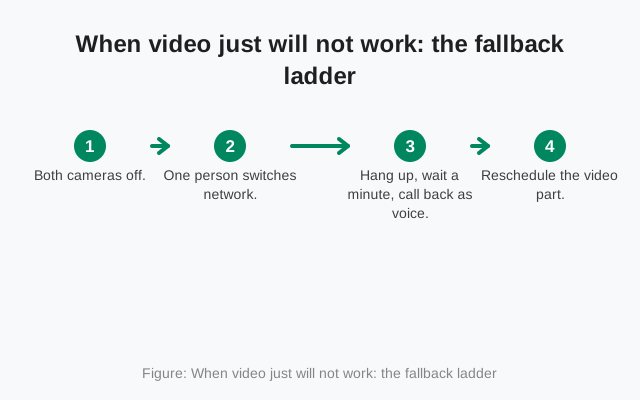
When video just will not work: the fallback ladder
Sometimes the network wins and no fix in the table saves the call. Do not keep redialing the same failing video call. Descend the ladder instead:
- Both cameras off. The call becomes voice; audio usually survives.
- One person switches network. The weaker side moves from Wi-Fi to mobile data or steps closer to the router.
- Hang up, wait a minute, call back as voice. A fresh voice-only call negotiates the simplest possible connection.
- Reschedule the video part. If it truly matters that you see each other, agree on a time when both of you are on solid Wi-Fi rather than burning twenty minutes on a call neither of you can hear.
None of this is a Signal bug. Video calling is the most demanding thing a phone does over a network, and every video app on earth degrades the same way on the same networks. The ladder just gets you to a working conversation faster.
Video calls on Signal Desktop
Linked Signal Desktop handles video calls with a bigger screen and better ergonomics: grid, sidebar, and speaker layouts for group calls, and a proper keyboard for anything you need to type mid-call. The call stays encrypted end to end, and the same relay setting from your phone governs how the traffic routes. For long video meetings, desktop is simply the better device.
FAQ
Can I switch from a voice call to a video call without hanging up?
Yes. On the active call screen, use the camera toggle to add video to an ongoing voice call. You can also turn video back off the same way.
Why is the other person's video black but I can hear them?
Usually their camera permission is denied, their camera is toggled off, or their app version is outdated. The fix sequence is: ask them to check the camera toggle, confirm camera permission in the phone's app settings, then update Signal on both sides.
Can I share my phone screen on a Signal video call?
Screen sharing in Signal calls is most established on Signal Desktop. On Android, the in-call controls focus on camera and microphone. To show your screen, use Signal Desktop or send screenshots and screen recordings in the chat.
Do video calls use a lot of mobile data?
Much more than voice calls. Use Wi-Fi when available, turn your camera off when you're mostly listening, and drop to voice-only if the connection struggles. Audio survives networks that video cannot.
Can the other person see me before I answer?
No. Your camera and microphone are completely off until you accept the call. Nothing streams before you pick up.
Keep reading
- voice call basics: the encrypted calling guide
- bring more people in: group video calls
- mic not working: the microphone fix
- quality fixes: deeper call troubleshooting
- camera not working on video calls: the camera fix