
Install Signal on Android 8 the right way
Published: October 7, 2026
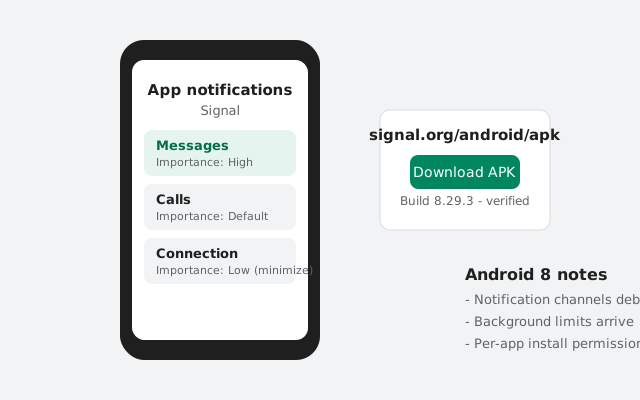
Android 8 (Oreo) was a turning point for sideloading: it's the version that replaced the old global "Unknown sources" switch with per-app install permissions. The system still in use today. It also introduced notification channels and strict background limits, both of which shape how Signal behaves on Oreo phones. This guide covers the install plus the Oreo-specific settings worth knowing.
Install steps on Android 8
Download the APK
On the phone's browser, open signal.org/android/apk and download the current website build.
Open the downloaded file
Tap the download notification or find the file in Downloads.
Allow "Install unknown apps" for your browser
Android 8 shows a prompt asking you to allow the specific app (your browser) to install unknown apps. Allow it. This per-app approval is the Oreo way (more below).
Install and open
Confirm the installer screen, tap Install, then Open.
Register and tune
Register your number, then read the battery and notification sections. Oreo's background limits make them matter.
During the install, Play Protect may show its own prompt: something like "Play Protect doesn't recognize this app's developer." This is expected for the website build: Play Protect is noting that the app didn't come through the Play Store, which is true and fine. It's informational, not a block. (If you ever see stronger wording ("harmful app" rather than "unrecognized developer") on a file from anywhere other than signal.org, that's a different situation: stop and delete the file.)
Oreo-era phones often run old browser versions that mishandle large downloads. If the download stalls or the file arrives tiny, retry over Wi-Fi with the browser in the foreground. Or sidestep the phone's browser entirely with the ADB method from a computer.
"Install unknown apps" debuted here
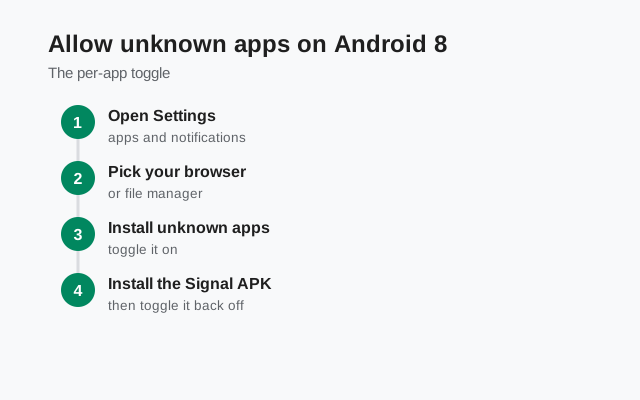
Android 8.0 killed the global Unknown sources toggle and replaced it with Settings → Apps → Special app access → Install unknown apps, where every app gets its own switch. In practice this means:
- You approve only the app holding your APK (browser or file manager). Not the whole phone.
- The approval survives for future installs from that app until you revoke it.
- There is no single master switch anymore. If a guide tells you to flip a global toggle, it's written for Android 7 and doesn't apply to your phone.
Our unknown-apps guide has the exact path for every brand, including the Oreo-era Samsung, Xiaomi, and Huawei skins.
Notification channels debut
Android 8 introduced notification channels: per-category notification settings inside each app. For Signal this means fine-grained control: Settings → Apps → Signal → Notifications shows separate channels for messages, calls, and other alerts, each with its own sound, vibration, and importance.
Two practical uses:
- Quiet groups, loud individuals: set the message channel to your taste globally, then override per conversation inside Signal.
- Diagnosing silent notifications: if Signal notifications stopped, check the channel list. A single channel set to "Silent" or turned off produces exactly the symptom of "some notifications missing." This per-channel view didn't exist before Oreo, and it's the first place to look.
Background limits and Signal's push connection
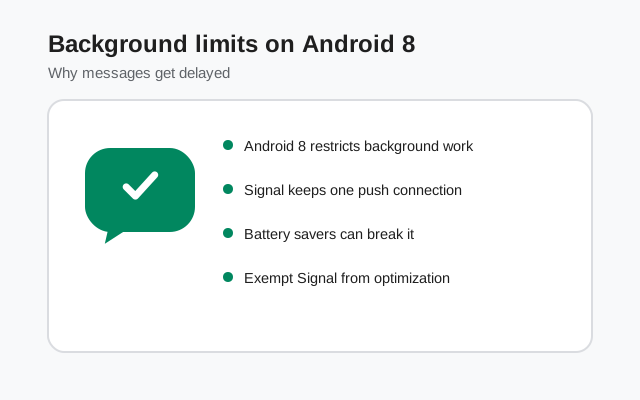
Oreo imposed background execution limits: apps can't freely run background services anymore. Signal is designed for this: it keeps a lightweight connection within the system's rules. But the limits interact badly with manufacturers' own battery savers, which on Oreo-era phones were at their most aggressive.
If messages are delayed until you open the app:
- Exempt Signal from battery optimization: Settings → Battery → Battery optimization → All apps → Signal → Don't optimize.
- Check your maker's extras: Huawei "Protected apps", Xiaomi "Autostart", Samsung's "Sleeping apps" (Device care → Battery). Whitelist Signal in all of them.
- Don't "clear all" Signal from recents aggressively on these skins. On some Oreo-era phones that kills the connection until the next manual open.
Understanding why helps: Oreo's standby buckets sort apps by how recently you used them, from "active" down to "rare." Buckets below "working set" get their background network deferred to maintenance windows. That deferral is exactly the "messages arrive in clumps" symptom. The battery-optimization exemption pulls Signal out of bucket management entirely, which is why it's the fix rather than a workaround.
Project Treble: your upgrade path
Android 8 introduced Project Treble, which separated the OS framework from vendor code, which made OS updates easier for manufacturers. Why this matters to you: phones that shipped with Oreo (not merely updated to it) are Treble-compatible, which means they had a realistic path to Android 9 and sometimes 10 via official updates.
Before settling in on Oreo, check Settings → System → System update. If your phone was offered an update you never took, installing it moves you to a newer, still-supported Android with better security. Every guide on this site covers those versions too (Android 9, Android 10).
Battery settings on 8-era phones
- Adaptive Battery doesn't exist yet (that's Android 9). Oreo has the cruder "Background activity" per-app toggle and the system battery optimization list. Use both: background activity allowed, optimization off for Signal.
- Samsung Device care: put Signal in "Unmonitored apps" / "Apps not put to sleep" so Samsung's own manager leaves it alone. On Oreo-era Samsung phones there's also "App power monitor," which puts unused apps to sleep automatically after three days. Signal on a secondary phone will get slept by this. Either open Signal every couple of days or disable the monitor's automatic sleeping.
- App standby buckets (Oreo's system): rarely-used apps get throttled automatically. Using Signal daily keeps it in an active bucket; if you install it as a backup phone's secondary app, open it every few days.
Updates and the signing-key warning
The website build self-updates on Oreo exactly as on newer versions: in-app prompt, installs over itself, no conflict since the key matches. One Oreo quirk: the update install needs the "Install unknown apps" permission for Signal itself (the app is now the installer). If an update download completes but the install never starts, check that Signal is allowed in the Install unknown apps list.
Is Android 8 still supported?
Honestly: barely, and not for much longer. Oreo stopped receiving security patches years ago, and Signal's minimum Android version rises over time. Oreo sits close to the floor. The current website build (8.29.3) installs and runs on Android 8, so you're fine today.
Your best move on an Oreo phone in 2026: check for an official OS update first (Project Treble makes this plausible), and if none exists, plan the phone's retirement for anything security-sensitive. Signal will keep working as long as the minimum allows. But the OS underneath stopped getting fixes long ago, so keep banking and similar activity off it.
One more consideration: if this Oreo phone is your only phone, prioritize replacing it over optimizing it. No settings change restores security patches. Signal's encryption protects your messages in transit and at rest, but it can't patch the OS underneath. A realistic upgrade timeline beats any amount of settings tuning.
Meanwhile, keep the Oreo phone useful: it's still fine as a secondary Signal device (linked to your primary account) or a dedicated media/backup phone. Just don't make it the device holding your only copy of anything important. And whatever you do, don't "solve" the support cliff by sideloading some stranger's "patched" Signal APK that claims to extend compatibility. Unofficial builds are exactly how tampered messengers spread. The official website build or nothing.
If no over-the-air update is offered, check your manufacturer's PC companion tool (Samsung Smart Switch, Xiaomi Mi Flash / Mi PC Suite, Huawei HiSuite), which sometimes carry updates the phone's own updater doesn't list. A successful bump from Oreo to Pie (or even 10) buys you years of extra security patches and keeps Signal's support runway long.
And if no update exists at all, squeeze the remaining life out of Oreo sensibly: keep the website build updated (it updates itself), keep the battery exemption in place, and treat the phone as a secondary device rather than your daily driver. An old phone running current Signal with open eyes about its limits is a reasonable setup. An old phone treated as if it were new is not.
from Signal's official site — file hosted by Signal, not by us.