
Signal Chat Wallpaper: Make Every Chat Look Like Yours
Published: October 7, 2026 · Updated: October 8, 2026
Signal is a privacy tool first, so nobody expects it to win beauty contests. It is more customizable than it looks. You can put a wallpaper behind your chats, globally or per conversation, switch between Light, Dark, and System themes, and recolor your message bubbles with solid colors or gradients. This guide shows where each setting lives, what your contacts will and won't see, and the honest limits of what Signal lets you change.
from Signal's official site — file hosted by Signal, not by us
What you can change, at a glance
Signal's appearance settings cover four things, and nothing else:
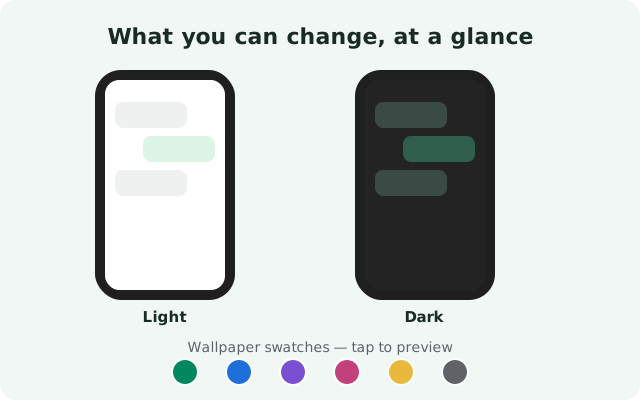
- Chat wallpaper: the background behind your messages. One default for every chat, or a different one per conversation.
- Theme: Light, Dark, or System (follows your phone's setting).
- Message bubble colors: the color of the bubbles you send, in solid colors or gradients you can build yourself.
- Wallpaper dimming: your wallpaper darkens automatically when the dark theme is active, so it does not glare at night.
The single most important fact, straight from Signal's support page: only you see your choices. Your wallpaper, your theme, your bubble colors: all of it displays on your screen only. Your contacts see their own setup, never yours. That kills the main reason people hesitate ("will my weird wallpaper confuse them?") and explains why Signal never bothered with shared themes.
Set one wallpaper for all chats
The global wallpaper is the default background behind every conversation that does not have its own specific wallpaper. Set it once and your whole app has a consistent look.
Open the appearance settings
Tap your profile picture and open Appearance. This is where theme and wallpaper settings live.
Find the chat wallpaper option
Look for the chat wallpaper setting. On current versions it sits with the chat color controls, since Signal groups color and wallpaper together.
Choose a photo or a color
You can pick any photo from your phone's gallery, or choose a solid color if you want something calm. A preview shows how real messages look on top of it.
Confirm
Set it. Every chat that does not have its own specific wallpaper switches to the new background immediately.
Good candidates for a global wallpaper: a dark solid color if you live in the dark theme, a subtle photo with a plain area in the middle, or a soft gradient. Busy photos make messages hard to read (more on that below).
Give one chat its own wallpaper
Per-chat wallpapers are the genuinely useful version of this feature. Open any conversation's settings and you will find the same chat color and wallpaper controls, scoped to that one chat. Uses people actually like:
- Color-code your people. Family chats get one wallpaper, work chats another. You recognize which conversation you are in before you read a word. Handy when you are half asleep.
- A photo that belongs to the chat. The group chat planning a trip gets the destination photo as its background. It is a small thing that makes the chat feel like its own place.
- High-contrast for one important chat. Give the chat you check most often a plain dark or light background so messages are maximally readable there, whatever your global wallpaper is.
A per-chat wallpaper overrides the global one for that conversation only. Remove it and the chat falls back to your default. Nothing about this is visible to the other person. Your color-coding is your secret.
Light, Dark, or follow your phone
The theme controls the app's overall chrome: backgrounds, menus, the chat list. Three options:
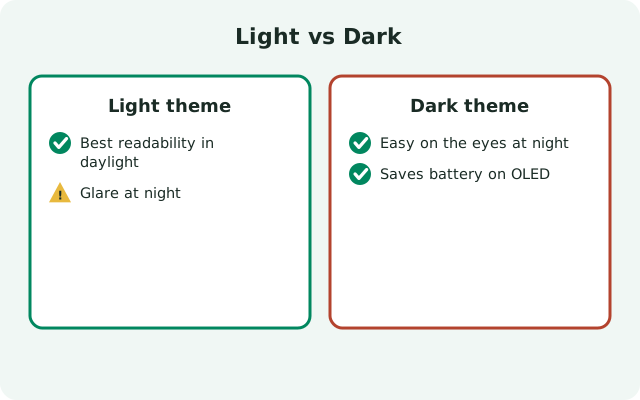
- Light: white backgrounds, dark text. Best in bright daylight.
- Dark: dark backgrounds, light text. Easier on the eyes at night and kinder to OLED battery life.
- System: follows your phone's system theme, switching automatically with it. Set it once and forget it; this is what most people should pick.
On Android the path is your profile, then Appearance, then Theme. The theme and the wallpaper interact: when dark mode is active, Signal can dim your wallpaper so a bright photo does not blast you at 1 a.m. If a wallpaper looks great in the day and terrible at night, the dimming (or a separate darker per-chat wallpaper) is the fix.
Themes are also an accessibility story, not just a style one. If you struggle with contrast, the dark theme with a plain dark wallpaper and light bubbles is the most readable combination Signal offers.
For the full theme walkthrough (turning dark mode on, scheduling it through your phone, and the honest AMOLED battery notes), see our dark mode guide.
Bubble colors: the finishing touch
Your sent-message bubbles do not have to stay the default green. In the same chat color and wallpaper controls, you can restyle them:
- Pick a preset color. A row of solid colors covers the obvious choices.
- Build a gradient. Choose the gradient option, drag to set the direction, and tap individual points to edit their colors. This is where people make genuinely nice-looking chats.
- Auto-match. There is an option that matches your bubble color to your wallpaper automatically: the lazy way to a coordinated look.
- Scope it. Like wallpapers, bubble colors can be global or per-chat. A per-chat bubble color plus a per-chat wallpaper is how you make one conversation unmistakable.
One restraint: incoming bubbles stay neutral. You style what you send; what others send keeps the default look. That is deliberate. It keeps the visual language of "mine vs theirs" consistent no matter how wild your gradients get.
What you can't change: the honest list
Signal's customization has hard edges, and it is better to know them upfront than to hunt for settings that do not exist.
| Can change | Cannot change | Why it matters |
|---|---|---|
| Chat wallpaper (global + per-chat) | Chat wallpaper packs or downloads | There is no theme store; you bring your own photos |
| Theme: Light / Dark / System | Custom themes beyond the three | No third-party themes, no accent-color theming of the whole app |
| Sent bubble colors and gradients | Incoming bubble style, fonts, text size beyond system | The other side of the conversation always looks the same |
| Wallpaper dimming in dark mode | Per-chat themes | One theme for the whole app; wallpapers do the per-chat work |
| Your own view of everything | What your contacts see | Customization is strictly local: by design, not by omission |
The philosophy is visible in the table: Signal lets you customize your view and nothing else. There is no shared visual language to negotiate, no theme that has to render on someone else's phone, and no theme marketplace to police for malicious content. For a privacy app, that restraint is a feature.
Also worth saying plainly: there is no "pro theme" or "premium wallpaper pack." If a site offers you one for Signal, it is a scam: the same family of fakes as the Signal Pro APK scam.
Picking a wallpaper that stays readable
A wallpaper that looks great in the preview and terrible behind real messages is the classic failure. Four rules:
- Prefer plain middles. Messages sit in the center of the screen, so the center of your photo should be calm: sky, a wall, an out-of-focus background. Busy detail belongs at the edges.
- Mind the contrast. Dark theme plus a dark photo works; dark theme plus a bright beach photo fights your eyes. If you love a bright photo, let the dark-mode dimming do its job.
- Test with real messages. The preview helps, but open a long chat on top of the new wallpaper and scroll. If you squint, change it.
- Per-chat beats global for photos. A photo wallpaper across every chat gets visually noisy fast. One global calm color plus photo wallpapers in two or three special chats is the combination that ages well.
And if you ever want it all gone: reset the wallpaper to a plain color and pick the System theme. Signal's default look is deliberately inoffensive, and there is no shame in going back to it.
Your photos stay on your phone
One privacy question comes up a lot: when you set a personal photo as a chat wallpaper, does it go anywhere? No. Remember the core fact from Signal's support page: your wallpaper displays on your screen only. The photo never leaves your device, is never sent to your contacts, and is never uploaded to Signal's servers. It is a local display setting, like your theme choice.
This has two practical consequences. First, setting a family photo as a wallpaper is safe in the specific sense that nobody in the chat can see it, though anyone looking over your shoulder at your screen obviously can. That is a different problem. Second, your wallpapers do not follow you to a new phone on their own; they are part of your local app setup, so expect to re-pick them after a fresh install. The photos themselves are untouched. Signal only reads the image to display it.
FAQ
How do I change the chat wallpaper in Signal?
Decide whether you want it for all chats or one chat, open the chat color and wallpaper controls, choose Set Wallpaper, and pick a photo from your gallery or a solid color. Preview it behind real messages, then confirm.
Can I set a different wallpaper for each chat?
Yes. Open a specific conversation's settings and use the chat color and wallpaper controls there. That chat gets its own background; every other chat keeps the default.
Does the other person see my wallpaper?
No. Wallpapers, themes, and bubble colors display on your screen only. Your contacts see their own setup, never yours.
How do I turn on dark mode in Signal?
Tap your profile picture, open Appearance, then Theme, and pick Dark. System follows your phone's setting automatically, which is the best choice for most people.
Can I download theme packs for Signal?
No. Signal has no theme store and no downloadable theme packs. Light, Dark, and System are the whole list. Any site offering Signal themes or a "pro" version is running a scam.
Why does my wallpaper look different at night?
When the dark theme is active, Signal dims your wallpaper so bright photos don't glare. If a wallpaper still looks wrong at night, give that chat its own darker wallpaper.
Keep reading
- more of Signal's visual side: Signal stories
- expressive without words: Signal stickers
- what others see about you: profile privacy settings
- fake "pro" versions to avoid: Signal Pro APK scam warning