
Onboarding a Team to Signal: The Honest Playbook
Published: October 7, 2026 Updated: October 8, 2026
Yes, you can onboard a team to Signal. But know the limits first. Signal is a private messenger, not an enterprise tool. There is no admin console, no central management, and no remote wipe. That does not make it useless for teams; it just means the rollout is manual. This guide gives you the practical playbook: official installs on every phone, PINs and registration locks, a clean group structure, house rules everyone actually follows, and an offboarding checklist for when someone leaves. We will also show you, plainly, what Signal cannot do, so you do not build a security plan on features that do not exist.
- Start with the honest picture
- Step 1: One official install source for everyone
- Step 2: Register and verify each number
- Step 3: Set the PIN and registration lock
- Step 4: Build the group structure
- Step 5: Agree on house rules
- The one-week rollout plan
- What you can enforce vs what Signal cannot do
- When the rollout hits trouble
- The offboarding checklist
- Frequently asked questions
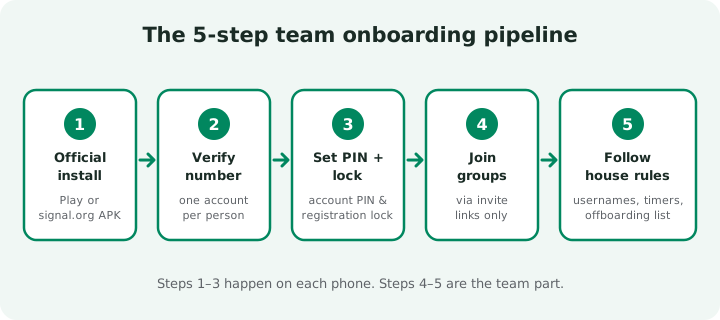
Start with the honest picture
Most team-chat tools assume someone is in charge. There is a dashboard, an admin who can add and remove users, a button that wipes a lost phone. Signal has none of that. It is built so that no one, not even Signal itself, can sit in the middle of your conversations.
That design choice is exactly why teams pick it: real end-to-end encryption, no message content on servers, no ads, no tracking. But it also means your "admin console" is a written policy and a few group-admin roles. If your compliance rules require centralized archiving, message auditing, or remote device wipe, Signal cannot be your primary team tool. Put that in writing before you start, not after someone leaves with sensitive chats on their phone.
Step 1: One official install source for everyone
Before anything else, decide as a team where the app comes from. Write it down. Mixed sources are how fake installers get in. The two legitimate options are Google Play, or the official APK straight from Signal's own download page. Nothing else.
from Signal's official site — file hosted by Signal, not by us
One thing to watch: the Play build and the website build use different signing keys, so one cannot be installed over the other. If a teammate switches builds later, they will need to back up first (Signal's encrypted backup with its passphrase) and re-register. It is much simpler to keep the whole team on the same build from day one. The current website build is v8.29.3 (package org.thoughtcrime.securesms), and it updates itself once installed.
Make it a hard rule: no shared APK files over chat, no "signal pro" or "signal plus" variants, no third-party stores. Every one of those is either useless or dangerous. If you want the details on spotting fakes, read our Signal APK safety checklist.
Step 2: Register and verify each number
Every team member registers their own phone number: work number if the company provides one, personal number if not. Each account is personal to the person holding the phone; there is no such thing as a shared company account or a generic "info@" login.
If the company issues SIMs, keep a simple register of which number belongs to whom. If people use personal numbers, decide the number-privacy settings as a team (step 5 covers this). Either way, one rule matters above all: the account PIN set during registration is the recovery key for that account. If someone loses it and loses their phone, recovering the account becomes painful. Treat the PIN like a password and store it safely. A password manager works fine.
Step 3: Set the PIN and registration lock
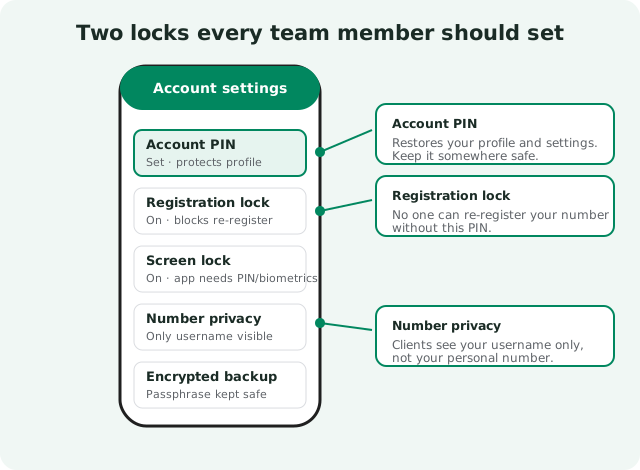
This is the single most important security step, and it takes two minutes. Two separate locks live in Signal's settings, and every team member should set both.
Set the account PIN
The PIN restores your profile, settings, and contacts if you move to a new phone. It is also the code that registration lock asks for. Choose something strong and store it in a password manager, not on a sticky note.
Turn on registration lock
This stops anyone else from re-registering your number on a new device without the PIN, even if they somehow get your SIM. For a team, this is the closest thing to account takeover protection you get. Make it mandatory.
Turn on screen lock
The app itself then asks for a fingerprint or device PIN before opening. On a lost or borrowed phone, this is the difference between a scare and a leak.
During install day, have each person confirm out loud (or in the pilot group): PIN set, registration lock on, screen lock on. Three checkmarks per person. It sounds formal; it takes thirty seconds and prevents the exact incidents that make teams abandon secure tools.
Step 4: Build the group structure
Do not let groups grow organically. You will end up with five overlapping "Team" chats and no one knowing which is current. Create the structure deliberately, with names that state the purpose: Acme – Announcements, Acme – Sales Team, Acme – Field Crew. Put the org name first so the group is unmistakable in a long chat list.
The rules that save you later:
- Two admins minimum per group. If the only admin loses their phone or leaves, the group becomes unmanageable. Appoint the backup admin on day one.
- Add people through invite links, not manual adds. Links can be reset and turned off; a leaked link is fixable in seconds.
- Make announcement groups admin-only posting. Company-wide updates need a broadcast channel, not a reply-all free-for-all.
Signal groups support up to 1,000 members, so even a large organization usually fits in one announcement group. Our guide to managing Signal groups for an organization is the full playbook for running groups at org scale: admin roles, invite-link hygiene, and the honest limits of moderation.
Step 5: Agree on house rules
A written one-page policy beats any feature. Here is what it should cover:
Usernames and contact sharing
Signal usernames let colleagues and clients reach each other without sharing phone numbers. Decide the convention (for example, firstname.lastname) and set number-privacy so only usernames are visible. Personal numbers stay personal.
Disappearing messages
Decide the default timer per group type. A day or a week works for most working chats; turn timers off where you need a record (announcements, decisions, anything a manager may need to look up later). Two things to say out loud in the policy: disappearing messages do not prevent screenshots, and they are a privacy convenience, never a compliance mechanism.
What goes where
Write down which conversations live in Signal and which do not. Client contracts, HR matters, anything under a retention duty: those belong in the system your compliance policy covers. Signal is for the everyday chat in between. For the broader picture of what Signal fits and does not fit, see our honest Signal-for-business overview.
The one-week rollout plan
Roll it out in stages instead of announcing it to everyone on Monday morning. The pilot group catches the install hiccups, the policy questions, and the "where do I find this setting" messages before they hit the whole company.
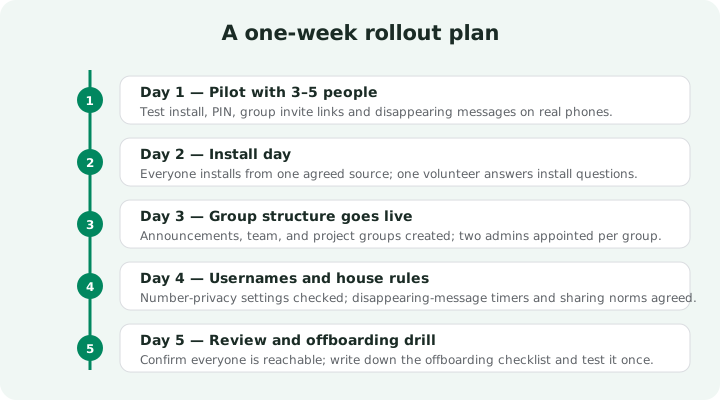
One detail people skip: the offboarding drill on day 5. Take a volunteer, remove them from the groups, reset the shared links, and confirm they are gone from every chat. It takes five minutes and proves the checklist works before you actually need it.
What you can enforce vs what Signal cannot do
This is the information-gain core of the playbook: a plain list of what your team controls through policy and what Signal simply does not offer. Print it, and attach it to the rollout memo.
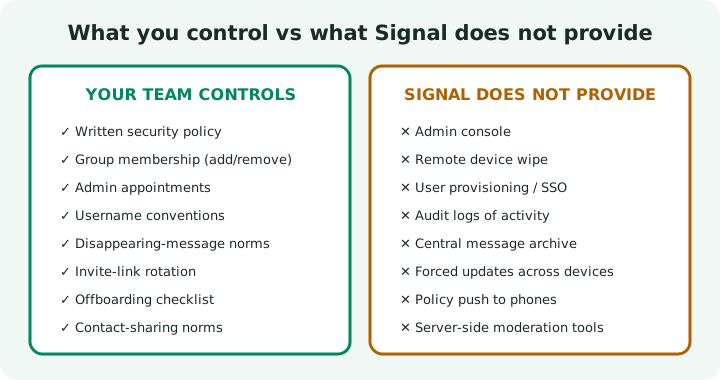
| Need | How it works on Signal |
|---|---|
| Everyone on the same app | Written policy + one agreed install source; no forced updates exist |
| Account security per person | PIN + registration lock + screen lock, verified per person on install day |
| Group membership control | Admins add/remove manually; invite links reset when leaked |
| Announcements without noise | Admin-only posting permission per group |
| Data hygiene on devices | Disappearing-message timers as a norm: not enforceable, not screenshot-proof |
| Removing a leaver | Manual removal from every group + link reset; no central account action |
| Remote wipe of a lost phone | Not possible. Screen lock + disappearing messages are your mitigation |
| Audit logs / message archive | Not possible. Keep regulated conversations off Signal entirely |
| Provisioning and SSO | Not possible. Each person registers their own number |
When the rollout hits trouble
Rollouts rarely go wrong, but when they do, it is almost always one of four situations. Here is each one and what to do:
- The verification code never arrives. Check the SIM is in the phone and has signal, wait a few minutes, then request the voice-call option instead of SMS. One hard rule for the whole team: never share verification codes in a group chat or forward them to anyone. Anyone holding the code and the phone number can register the account.
- Registration lock blocks a returning teammate. If someone re-registers and Signal asks for a PIN they do not remember, and registration lock was on, there is a waiting period before they can set a new one. This is the painful case, and it is why step 3 tells everyone to store the PIN in a password manager on day one. Plan the rollout week around it rather than fighting it.
- Someone installed the wrong build. A teammate grabbed a "signal pro" variant or mixed up the Play build and the website build. Have them uninstall it completely, install from the team's agreed source, and re-register the same number. Chats made in the fake app are not recoverable, which is why the install-source rule is step 1.
- A phone is lost mid-rollout. Registration lock plus the phone's screen lock protects the account from being re-registered by whoever finds it. Remove the person from the team groups until they are back on a new device, and re-verify safety numbers in person when they rejoin, since their encryption keys are new.
And one people problem, not a technical one: teammates who do not want colleagues to have their personal number. That is exactly what usernames are for. A person can join every team group under a username and keep their phone number private from everyone except whoever they choose to share it with. Settle this in step 5 so nobody stalls the rollout over it.
The offboarding checklist
Say this once, clearly, so no one is surprised later: when someone leaves the team, you cannot reach into their phone and delete anything. There is no remote wipe, no account deactivation, no central kill switch. Offboarding on Signal is a manual checklist. That is exactly why it must be written down and followed every time.
Remove them from every work group
Go through the group list (keep a master list of org groups; see the org groups guide) and remove the person from each one. Do the announcement group first, since it has the widest audience.
Reset shared invite links
If the leaver ever had access to a group invite link, reset it. A link that once worked is a link that can be shared.
Revoke anything they administered
If they were an admin of any group, remove their admin role (they are already out of the group at step 1; this is about the audit trail in your own records).
Ask them to delete work chats
You cannot force this, but ask: in writing, with a date. Most people comply, and the paper trail matters if there is ever a dispute.
Update your records
Strike their number off the register, note the offboarding date, and reassign their groups if they owned any client relationships.
Frequently asked questions
Can you onboard a team to Signal without an admin panel?
Yes, but it is manual. There is no admin console, so you install the app on each phone, set PINs and registration locks, organize people into groups, and enforce rules through a written policy. It works well for small teams with simple needs.
How do you install Signal for a whole team safely?
Agree on one official source before anyone installs: Google Play, or the official APK from signal.org/android/apk/. Do not let anyone install it from third-party app stores or shared APK files, because fake installers are a real threat.
What is the Signal PIN, and does every team member need one?
The Signal PIN is a code that protects your account and lets you restore your profile, settings, and contacts. Every team member should set one, and everyone should turn on registration lock so no one else can re-register their number.
How do you offboard someone from Signal?
There is no remote wipe or central account removal. Offboarding means removing the person from every work group, resetting shared invite links, and asking them to delete work chats. Keep a written checklist so nothing is missed.
Can Signal replace Slack or Microsoft Teams for a company?
Not as a full replacement. Signal has no admin console, no integrations, no threaded channels, and no message archiving. It is excellent for secure chat, but teams usually keep it alongside their main work platform.