
Signal backup too large? How to shrink it without losing chats
Published: October 7, 2026
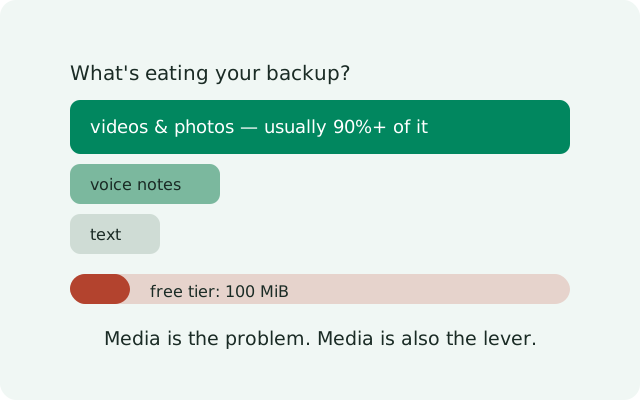
If your Signal backup is too large, the culprit is almost never your messages. It is your media. Text chats are tiny; a single long video can outweigh years of texting. And this matters more than convenience: the free tier carries your texts plus 45 days of media within a 100 MiB message archive, so a bloated history gets trimmed by design, not by bug. This guide shows you exactly what is eating the space, the honest ways to shrink a backup without losing your chats, and when the real answer is simply the paid tier.
What is eating the space
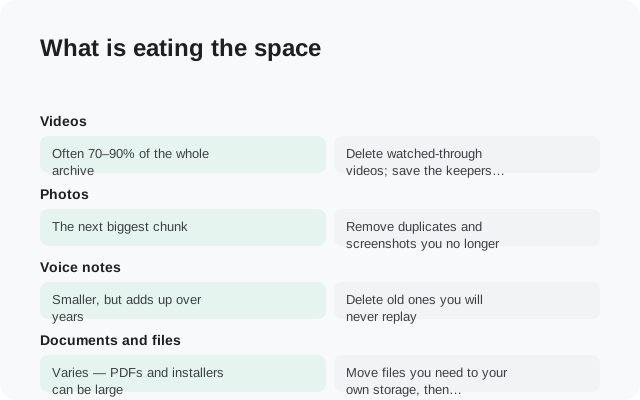
Rank your backup's contents by size, biggest first:
| Content | Typical share of backup size | How to cut it |
|---|---|---|
| Videos | Often 70–90% of the whole archive | Delete watched-through videos; save the keepers outside Signal first |
| Photos | The next biggest chunk | Remove duplicates and screenshots you no longer need |
| Voice notes | Smaller, but adds up over years | Delete old ones you will never replay |
| Documents and files | Varies. PDFs and installers can be large | Move files you need to your own storage, then delete from chats |
| Text messages | Tiny. Years of text fit in megabytes | Do not bother; this is not the problem |
The pattern is clear: media is the problem, and media is the lever. Anything you do to the text side of your history will barely move the number.
Shrinking it honestly
No tricks here, only things that actually reduce the archive:
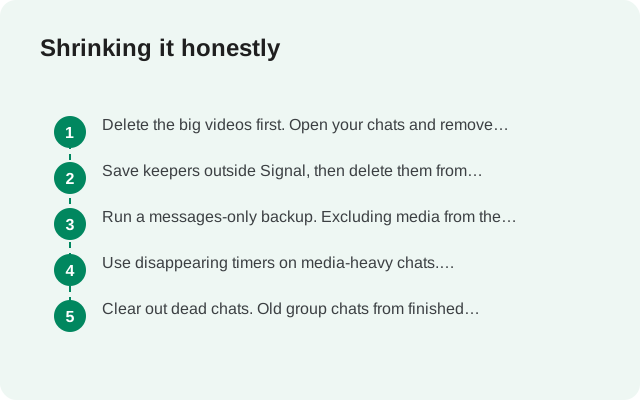
- Delete the big videos first. Open your chats and remove videos you have already watched or saved elsewhere. One long video can shrink a backup more than a thousand deleted text messages.
- Save keepers outside Signal, then delete them from chats. Photos and videos you want to keep do not have to live inside the backup. Move them to your gallery, a PC, or your own storage (see how to back up Signal to a NAS or external drive), then delete them from Signal. The backup shrinks; the memories survive.
- Run a messages-only backup. Excluding media from the archive produces a dramatically smaller backup that still preserves your full text history. Use this when the text record is what matters. But save any media you care about elsewhere first, because the backup will not contain it.
- Use disappearing timers on media-heavy chats. Disappearing messages with timers of 24 hours or less are never backed up at all. Setting short timers on your chattiest, most media-heavy conversations keeps future backups small automatically. It does not shrink an archive that already exists.
- Clear out dead chats. Old group chats from finished projects and long-dead conversations carry media you will never look at again. Deleting the chat deletes its media from future backups.
How the free-tier limit works
The free tier backs up your texts and carries 45 days of media within a 100 MiB message archive. Read that carefully, because it answers most "too large" complaints:
- Your texts are always backed up. The size limit does not eat your message history. Text is tiny and always included.
- Media older than 45 days is trimmed. On the free tier, older photos and videos are dropped from the backup by design. If your "huge backup" is mostly two-year-old videos, the free tier was never going to keep them anyway.
- The 100 MiB archive is the message record. Think of the free backup as a complete text history plus a rolling 45-day media window. Not a lifetime media vault.
So if your goal is "keep every photo from the last three years," no amount of shrinking makes the free tier do that. That is what the paid tier is for.
When the paid tier is the answer
The paid tier costs $1.99 per month and covers your full media history up to 100 GB. Be honest with yourself about which camp you are in:
| Your situation | Honest answer |
|---|---|
| You mostly care about the text record | Stay free. Shrink the media, run messages-only if needed, and the free tier handles text perfectly. |
| You want recent photos kept, old ones expendable | Stay free. The 45-day media window covers this, and old media can live in your gallery instead. |
| You want years of photos and videos inside the backup itself | Pay the $1.99/month. No free-tier trick achieves this. The trimming is by design. |
| Your backup is large because of one project or event | Save that media outside Signal, shrink the backup, and stay free. Do not pay forever for one bulky month. |
One generic note on payment: if a paid subscription lapses, subsequent archives revert to free-tier limits. So a large media history can start trimming again after the subscription ends. Keep the subscription active if the full history matters to you.
Estimating your backup size before you run it
You can predict whether a backup will be a problem before you start it. The rough math:
- Text: years of messages typically fit in a few megabytes. Ignore it in the estimate.
- Photos: each photo is a few megabytes. A thousand photos is a few gigabytes.
- Videos: the dominant term. A single minute of phone video can be over a hundred megabytes. An hour of shared videos dwarfs everything else combined.
- Voice notes: roughly a megabyte per minute. Meaningful only in very chatty histories.
Then compare against your constraints: the free tier's 100 MiB message archive with 45 days of media, and your phone's free storage (the backup needs room to write the archive before uploading). If the estimate says "gigabytes of video," do the shrinking work before the backup, not after it fails at 60 percent.
A worked example: the 3 GB chat history
Say your history totals roughly 3 GB, and 2.8 GB of that is video. Your options, honestly ranked:
| Option | Result | Cost |
|---|---|---|
| Delete watched videos, keep the rest | Backup drops to a few hundred MB; free tier covers text + recent media | An evening of sorting |
| Save all video outside Signal, then delete from chats | Tiny backup, all media preserved elsewhere | Storage space on a PC or drive |
| Messages-only backup | Full text history, no media in the archive | Media lives only outside Signal |
| Paid tier, change nothing | Full 3 GB history backed up, up to the 100 GB cap | $1.99/month, kept active |
There is no fifth option where the free tier keeps 3 GB of video. Anyone promising one is selling something. Pick the row that matches what you actually care about, the text record, the media, or both, and pay only if "both, inside Signal" is the answer.
After shrinking: verify the backup actually ran
Do not assume the smaller backup succeeded. Confirm it. Open Signal → Settings → Chats → Chat backups and check that the last-backup date is today. If you excluded media, spot-check one old conversation on your phone to make sure the text record is intact. And if you moved keepers outside Signal, open a few of those files on the PC or drive to confirm they copied correctly before you treat the phone copy as disposable. A backup you have not verified is a hope, not a backup.
Frequently asked questions
Why is my Signal backup so much bigger than I expected?
Because media dominates. A few years of photos and especially videos can make a backup hundreds of times larger than the text alone. Text messages are tiny. Almost all the size is photos, videos, and voice notes.
Does the free backup tier have a size limit?
Effectively, yes. The free tier carries your texts plus 45 days of media within a 100 MiB message archive. Media beyond that is trimmed by design. The paid tier at $1.99/month covers your full media history up to 100 GB.
Will a messages-only backup lose my photos?
A messages-only backup excludes media from the archive, so the backup itself will not contain photos or videos. Your chats and text history are preserved. Save any media you care about outside Signal first if you go this route.
Do disappearing messages make backups smaller?
Yes, going forward. Disappearing messages with timers of 24 hours or less are never backed up at all, so conversations with short timers contribute nothing to future backups. It does not shrink an archive you already created.
Is the paid tier the only way to keep years of media?
It is the only way inside Signal's own backup system. The free tier trims older media by design. The alternative is saving important media outside Signal, your phone's gallery, a PC, or your own storage, before it ages out.
Related: the Android backup guide, how Secure Backups and the recovery key work, the master backup troubleshooting hub, fixing a failed or stuck backup, how Signal uses your data, clearing Signal's cache.
from Signal's official site — file hosted by Signal, not by us